WELCOME TO MOBILERELATION

How to Switch From iPhone to Android With iOS 26.3
iOS 26.3 adds a built-in Transfer to Android tool. Here’s how to move your photos, messages and more from iPhone to Android, step by step.


How to Switch From iPhone to Android: iOS 26.3 Transfer to Android Explained
When you switch from iPhone to Android, the biggest hurdle has never been the new phone itself, but moving your data. Photos are relatively easy to handle, but messages, notes and app data often make the process feel overwhelming.
The good news is that Apple added a built-in Transfer to Android feature in iOS 26.3, released in February 2026. You can now move your data from iPhone to Android directly in the Settings app, without downloading a separate app. Here’s how it works and what to check before you make the switch.
What Is “Transfer to Android” in iOS 26.3?
“Transfer to Android” is a built-in migration tool in iOS 26.3. It lets you move important data from an iPhone directly to a compatible Android phone, without relying on third-party apps.
The feature lives in the iPhone’s Settings app, and the process feels very similar to setting up a new iPhone. You can choose what to transfer, such as photos, messages, notes, contacts and apps, and you can also move your phone number (eSIM) on supported carriers.
What You Need Before You Switch From iPhone to Android
- An iPhone updated to iOS 26.3 or later
- A compatible Android phone that is ready to be set up
- Wi-Fi turned on for the iPhone, and Bluetooth turned on for both phones
- Both phones charged and placed next to each other
Tips before you start:
- Back up your iPhone to iCloud or your computer first, just in case.
- Turn off iMessage and FaceTime on your iPhone after the transfer, so you don’t miss SMS messages sent from other iPhone users.
- Check your chat apps, such as WhatsApp, as some apps use their own chat transfer process.
How to Transfer Data From iPhone to Android: Step by Step
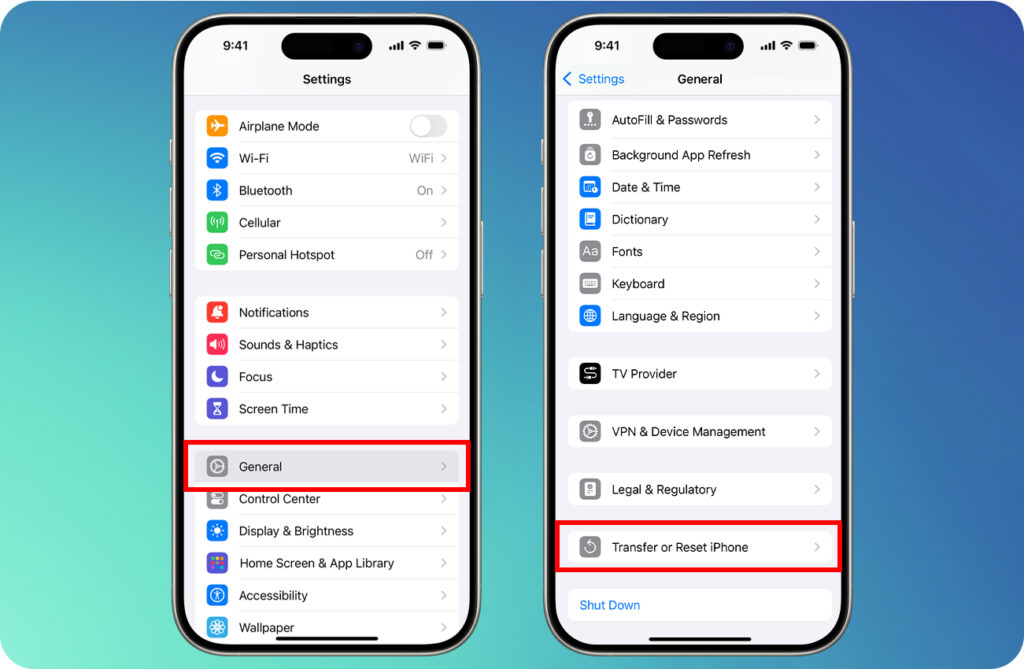
- On your iPhone, open Settings → General → Transfer or Reset iPhone.
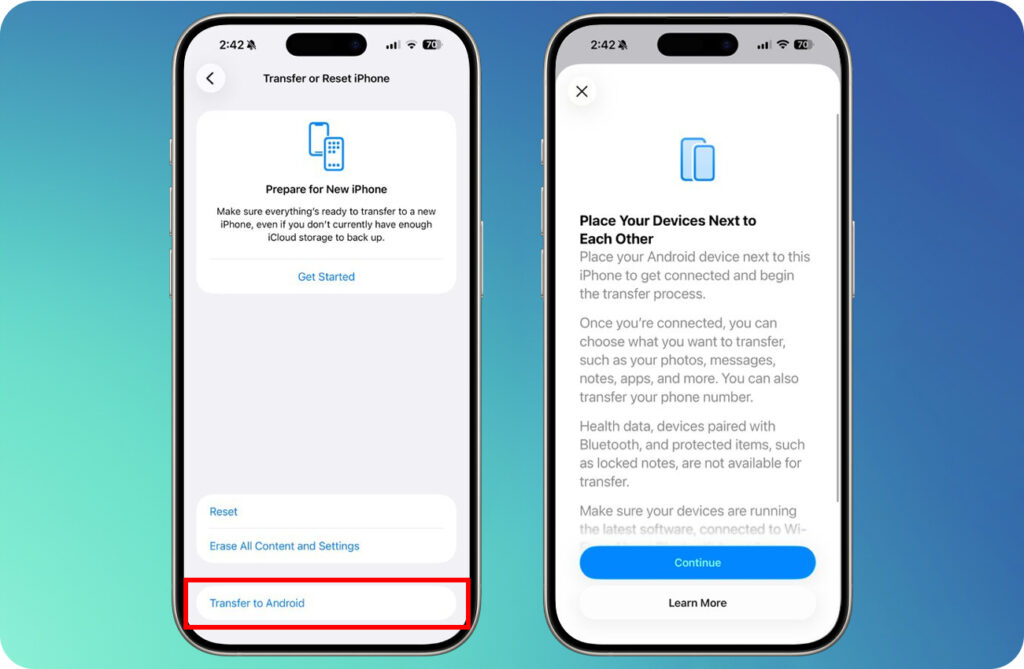
- Tap Transfer to Android.
- Place your iPhone and Android phone next to each other, then tap Continue.
- Use your iPhone to scan the QR code shown on your Android phone, or tap Other Options to pair using a code.
- Choose the data you want to move, then tap Continue to start the transfer.
- If you are also moving your eSIM, follow the on-screen prompts to confirm.
The screenshots below show where to find Transfer to Android on your iPhone:
What Cannot Be Transferred?
According to Apple, Health data, devices paired with Bluetooth and protected items, such as locked notes, cannot be transferred. Some third-party app data only moves over if the app developer supports it, so check your important apps before you reset your old iPhone.
Frequently Asked Questions
Can I switch from iPhone to Android without losing my photos?
Yes. Photos are one of the data types supported by Transfer to Android, so they move to your new phone during the transfer.
Do I need iOS 26.3 to use Transfer to Android?
Yes. The built-in option only appears on iPhones running iOS 26.3 or later, so update your iPhone first in Settings → General → Software Update.
Will my phone number move to my Android phone?
It can. If your carrier supports eSIM transfer, you can move your phone number as part of the process. Otherwise, contact your carrier to set up a new SIM or eSIM on your Android phone.
Is Transfer to Android Worth Using?
Transfer to Android wasn’t one of the headline features of iOS 26.3, but it is extremely practical. It lowers the barrier for anyone who wants to switch from iPhone to Android, so you can try an Android phone without the old data-transfer hassle. For full details, see Apple’s official guide on transferring data from your iPhone to an Android device.
Once your data is safely on your new phone, you can trade in your old iPhone at MobileRelation, or read our guide on how much your phone is worth in Singapore. Still choosing your new Android phone? Browse our Samsung phones in Singapore.