WELCOME TO MOBILERELATION

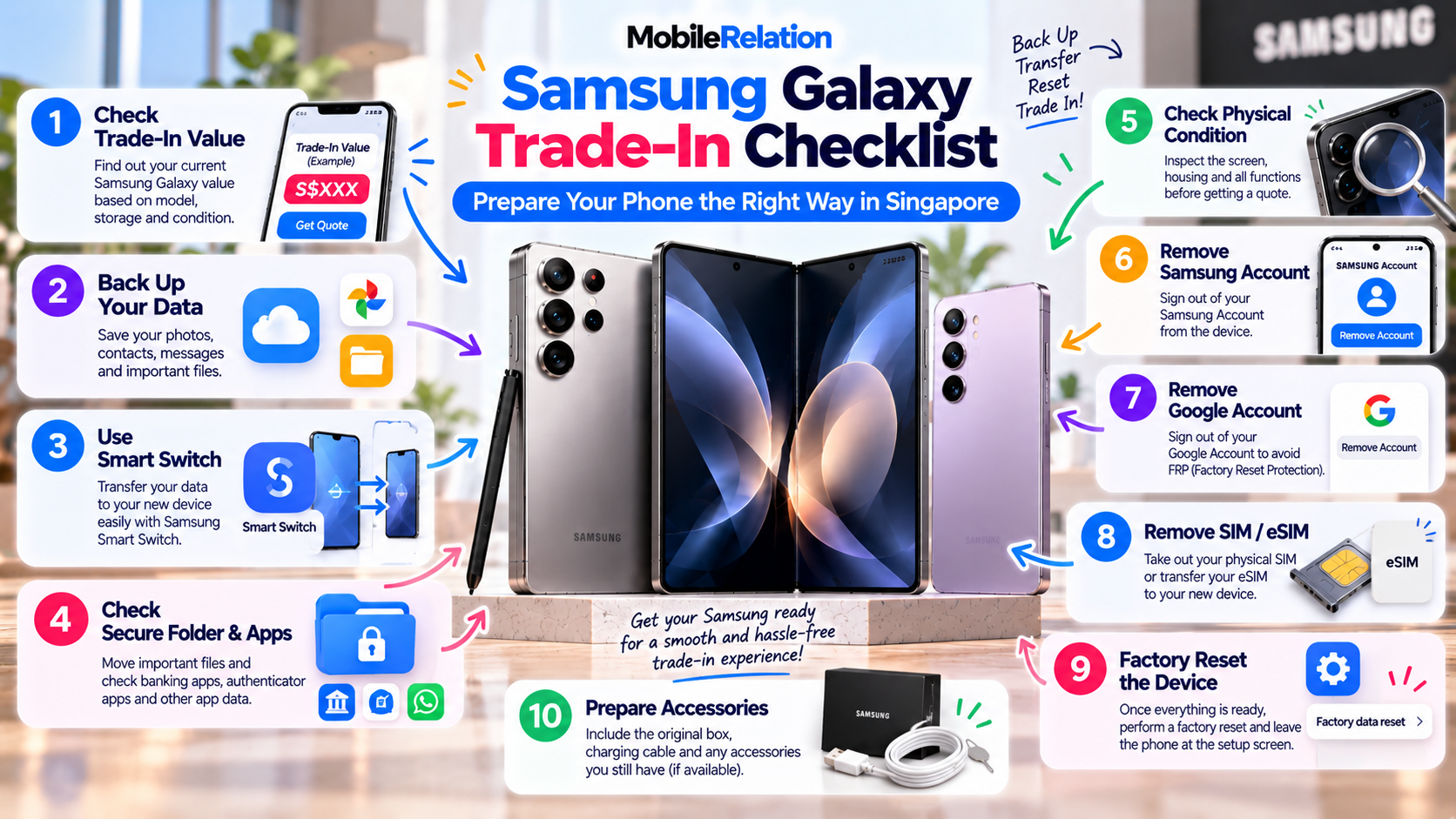
How to Prepare Your Samsung Galaxy Before Trade-In in Singapore
Ready to trade in your Samsung Galaxy phone?
Before handing over the device, there are several important steps you should complete to protect your personal information and make the trade-in process smoother.
Preparing your Samsung Galaxy is not simply about performing a factory reset.
You should first back up or transfer your important data, check the phone’s physical and functional condition, remove your Samsung and Google accounts, handle your SIM or eSIM, and only then erase the device.
In this Samsung Galaxy trade-in checklist, we explain how to prepare your Samsung phone for trade-in in Singapore step by step, including Samsung Smart Switch, account removal, Secure Folder, factory reset and what to check before completing your trade-in.
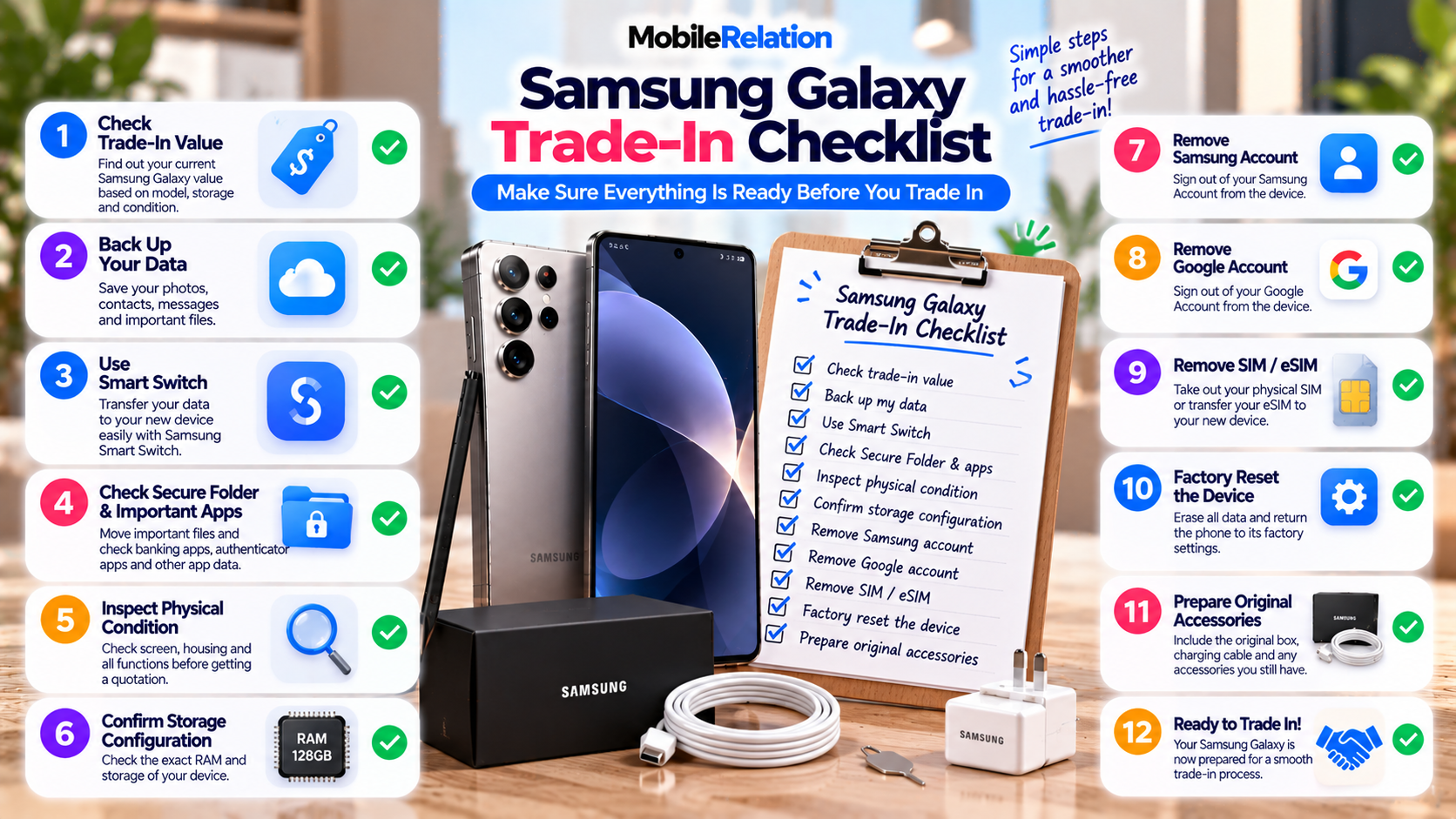
✅ Samsung Galaxy Trade-In Checklist
| Step | What to Do |
|---|---|
| 1 | Check your current Samsung trade-in value |
| 2 | Back up your important data |
| 3 | Transfer data using Samsung Smart Switch |
| 4 | Check Secure Folder and app-specific data |
| 5 | Inspect screen, housing and functionality |
| 6 | Confirm your exact storage configuration |
| 7 | Remove your Samsung Account |
| 8 | Remove your Google Account |
| 9 | Remove or transfer your SIM / eSIM |
| 10 | Factory reset the Samsung Galaxy |
| 11 | Prepare available original accessories |
💰 1. Check Your Samsung Trade-In Value First
Before resetting anything, check what your Samsung Galaxy is currently worth.
MobileRelation allows you to select your exact Galaxy model, storage and condition to receive an estimated quotation.
Depending on the model, factors may include:
• RAM and storage
• Screen condition
• Housing condition
• Original accessories
• Fingerprint or biometric functionality
• Display functionality
• Touchscreen functionality
• Camera functionality
This means it is useful to check the device carefully before erasing it.
Check Your Samsung Galaxy Value
Select your exact Galaxy model, storage and condition to see the current estimated quotation.
Check My Samsung Value☁️ 2. Back Up Your Samsung Galaxy
Before deleting anything, make sure your important data has been safely backed up.
Depending on how you use your Galaxy, this may include:
• Photos and videos
• Contacts
• Messages
• Documents
• Notes
• Calendar information
• Device settings
• App data where supported
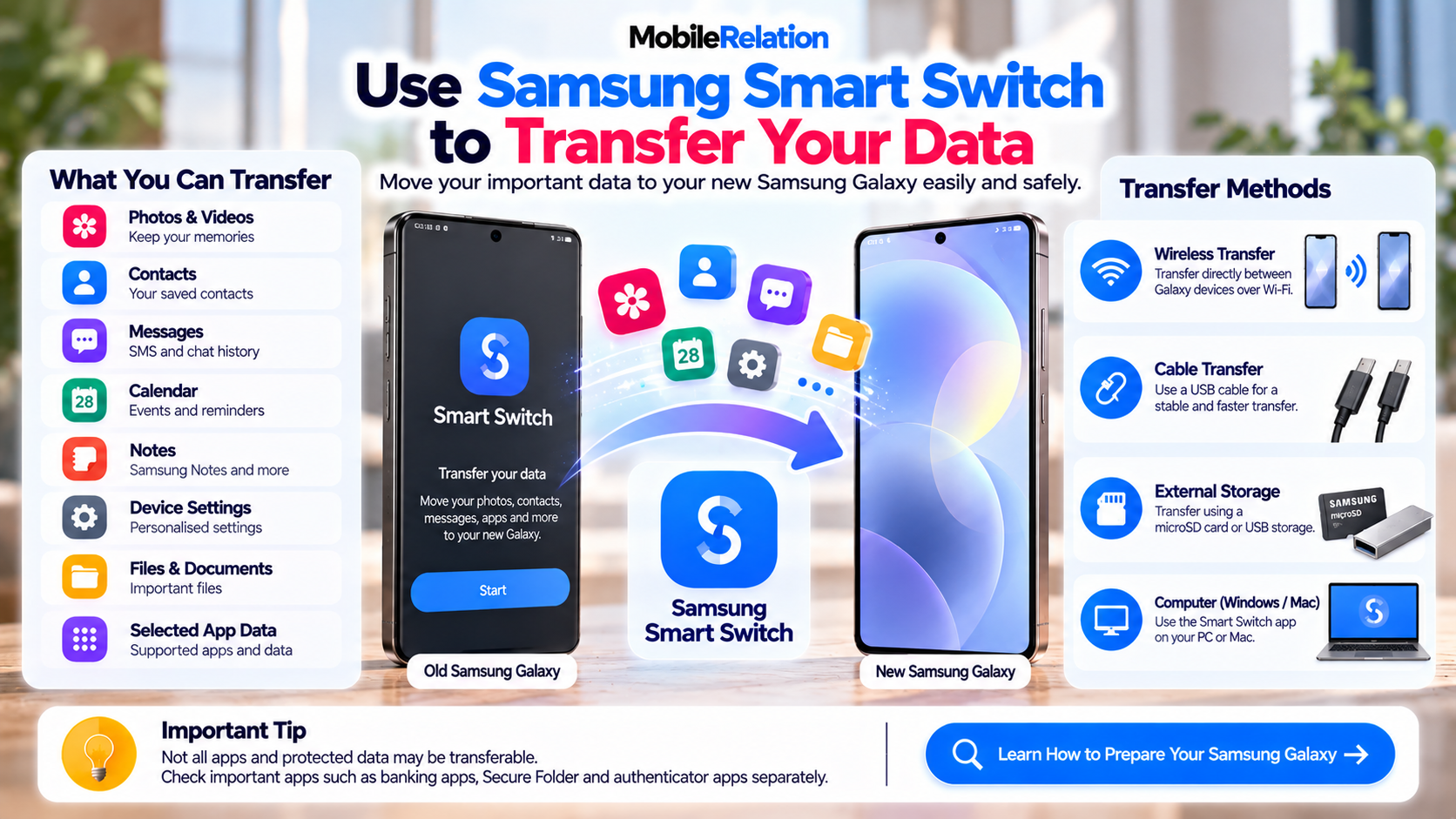
Samsung Smart Switch can be used to transfer or back up many types of data from your existing device.
Do not factory reset your old Galaxy until you have confirmed that everything important has been transferred or backed up successfully.
🔄 3. Transfer Your Data With Samsung Smart Switch
If you already have your replacement phone, Samsung Smart Switch can make transferring your data easier.
Samsung Smart Switch can transfer different types of information, including supported:
• Photos
• Videos
• Contacts
• Messages
• Notes
• Calendar events
• Files
• Device settings
Depending on your devices, Samsung Smart Switch can transfer data wirelessly, with a cable, through external storage or through a computer. You can learn more on Samsung Singapore’s official Smart Switch page.
On many Galaxy devices:
Settings → Accounts and backup → Smart Switch
Settings → Accounts and backup → Smart Switch
Follow the instructions on both devices, select the information you want to transfer and wait until the process completes.
🔐 4. Check Secure Folder and App-Specific Data
Smart Switch can move many types of information, but you should not assume that every app and every protected file will automatically transfer.
Before resetting your Galaxy, manually check important services such as:
• Secure Folder
• Banking apps
• Authenticator apps
• WhatsApp or other messaging backups
• Password managers
• Work apps
• Files stored only on the device
Secure Folder, in particular, is designed to protect private files, photos and apps.
If you have important information stored inside Secure Folder, make sure you have safely moved or backed up anything you still need before erasing the phone.
Don’t forget authentication apps.
Losing access to a two-factor authentication app can make signing in to other services difficult. Check your recovery or transfer options before resetting the old device.
Losing access to a two-factor authentication app can make signing in to other services difficult. Check your recovery or transfer options before resetting the old device.
🔍 5. Check the Screen and Housing Condition
Before resetting the phone, inspect its physical condition.
Check the Screen For:
• Light scratches
• Deep scratches
• Cracks
• Display lines
• Black spots
• Discolouration
• Touchscreen problems
Check the Housing For:
• Light scratches
• Paint wear
• Deep scratches
• Dents
• Impact damage
Describe the device as accurately as possible when requesting your quotation.
If the screen is actually cracked, remember that a cracked display is different from ordinary cosmetic scratches.
Read:
Can You Trade In a Samsung Phone With a Cracked Screen in Singapore? →
⚙️ 6. Test Important Samsung Galaxy Functions
A phone may look good but still have a functional problem.
Before erasing the device, test important functions such as:
• Power on / off
• Fingerprint or biometric authentication
• Display
• Touchscreen
• Camera
• Charging
• Speakers
• Buttons
MobileRelation’s current Samsung trade-in quotation flow specifically checks for issues such as inability to power on, biometric problems, display defects, touchscreen faults and camera faults.
💾 7. Confirm Your Exact Storage Configuration
Different storage and RAM configurations can have different Samsung trade-in values.
Make sure you know the correct configuration before requesting your quote.
You can check device information from:
Settings → About phone
Settings → About phone
The exact menus may vary slightly depending on your Galaxy model and One UI version.
Selecting the wrong configuration can result in an inaccurate estimated quotation.
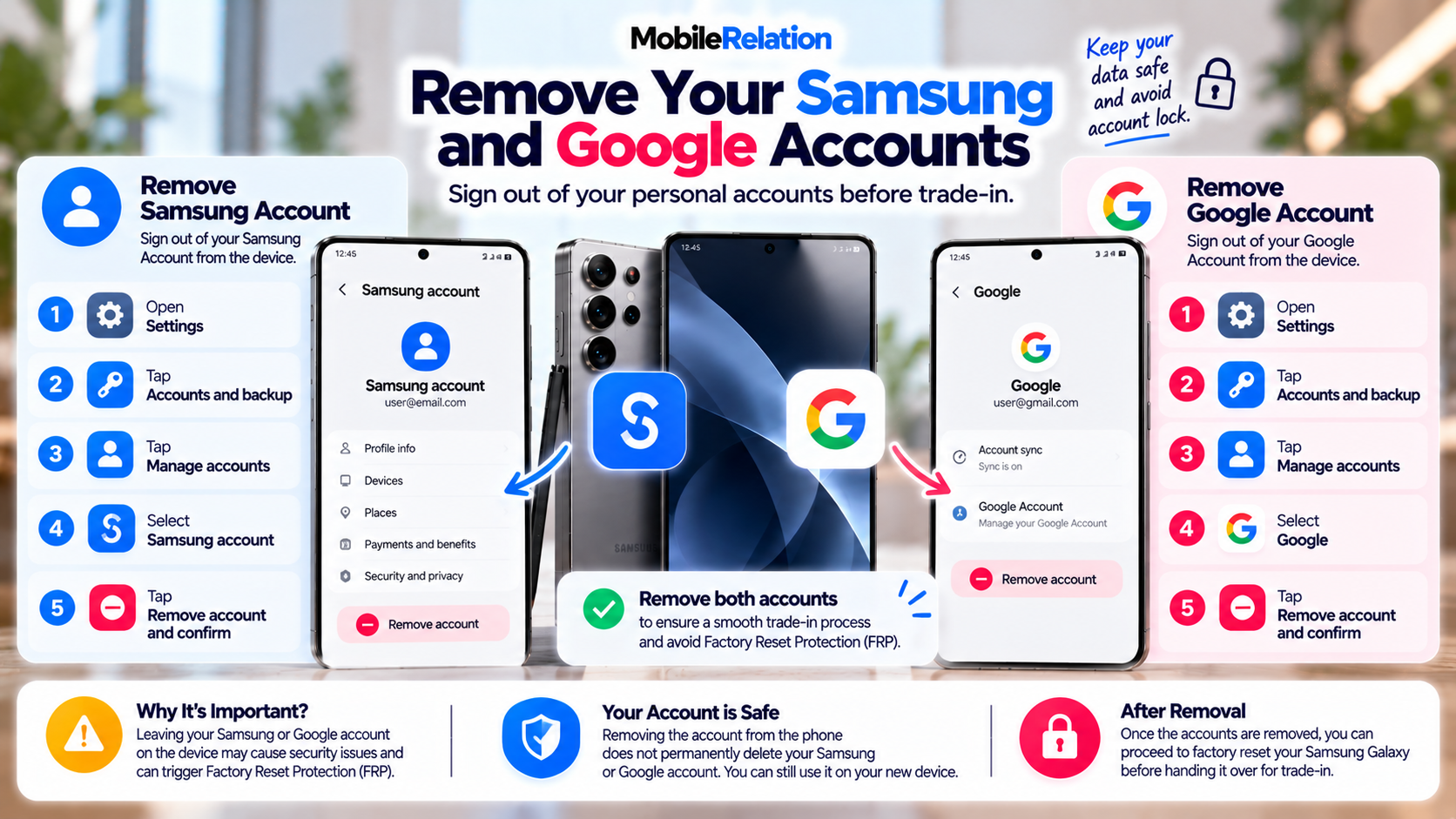
👤 8. Remove Your Samsung Account
Before the phone changes ownership, remove your Samsung Account from the device.
Typical path:
Settings → Accounts and backup → Manage accounts → Samsung account → Remove account
Settings → Accounts and backup → Manage accounts → Samsung account → Remove account
You may need to confirm the action and enter your Samsung Account password.
Removing the account from the phone does not mean permanently deleting your Samsung Account.
You can continue using the same Samsung Account on your new Galaxy device.
🔑 9. Remove Your Google Account
Your Google Account should also be removed before handing over the phone.
Typical path:
Settings → Accounts and backup → Manage accounts → Google account → Remove account
Settings → Accounts and backup → Manage accounts → Google account → Remove account
Follow the confirmation steps shown on the device.
Removing the Google Account helps ensure the phone is no longer associated with your personal account when ownership changes.
📶 10. Remove Your SIM or Transfer Your eSIM
Before handing over your Samsung Galaxy, remember to deal with your mobile service.
Physical SIM
Remove your physical SIM card from the phone before completing the trade-in.
eSIM
If your Galaxy uses eSIM, make sure your mobile service has been moved to your new phone or handled according to your mobile operator’s instructions.
eSIM transfer availability can depend on the device and mobile carrier.
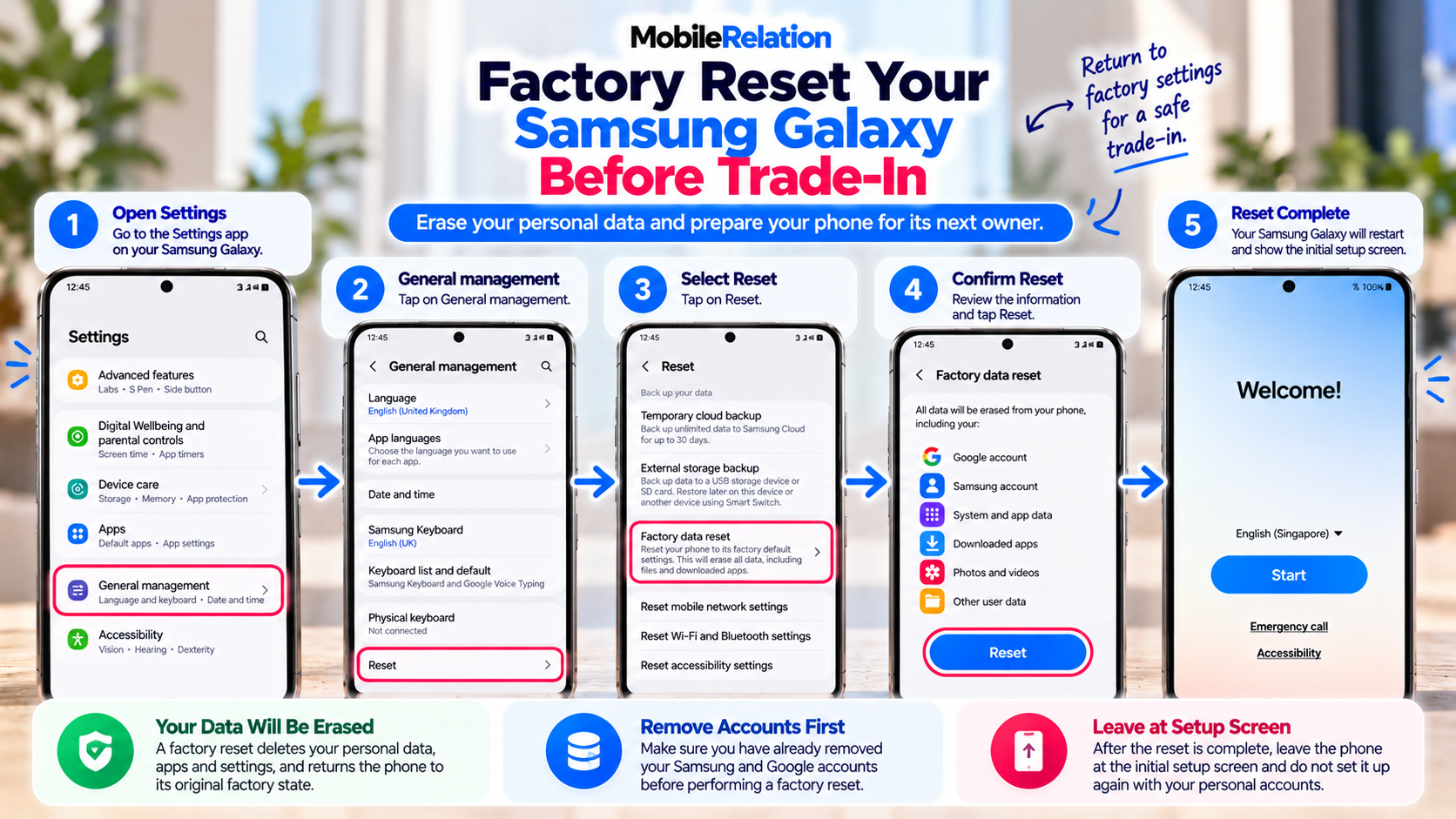
🧹 11. Factory Reset Your Samsung Galaxy
Once you have:
backed up your data, transferred everything you need, checked protected apps, removed your accounts and handled your SIM, you can factory reset the device. Samsung’s official guide on deleting all personal information from your device also covers removing your Google account before a reset.
Samsung Galaxy factory reset:
Settings → General management → Reset → Factory data reset → Reset → Delete all
Settings → General management → Reset → Factory data reset → Reset → Delete all
If a Samsung Account is still signed in, you may be asked for your Samsung Account password to complete the reset.
A factory reset deletes personal information stored on the device and returns the phone to its default setup state.
After the reset is complete, leave the phone at the initial setup screen.
Do not set it up again with your personal accounts if you are preparing it for trade-in.
📦 12. Prepare Any Original Accessories You Still Have
MobileRelation’s Samsung trade-in quotation system currently asks whether working original accessories are available.
These may include:
• Original box
• Charging cable
If you still have them, keep them together before completing the trade-in.
If you no longer have the accessories, select the actual items available when requesting your quote.
⚠️ What Should You NOT Do Before Trading In Your Samsung?
Don’t Factory Reset Before Backing Up
A factory reset deletes personal data stored on the phone.
Make sure your important files are safely backed up before proceeding.
Don’t Assume Smart Switch Transfers Everything
Smart Switch supports many types of data, but some protected or third-party app data may not transfer.
Check important apps individually before resetting.
Don’t Forget Your Samsung and Google Accounts
Remove personal accounts before handing the phone to its next owner.
Don’t Leave Your SIM Inside
Remove your physical SIM or transfer your eSIM before the trade-in is completed.
Don’t Guess the Phone Condition
Check the screen, housing and functionality carefully before selecting your trade-in condition.
♻️ How Samsung Trade-In Works at MobileRelation
| Step | Process |
|---|---|
| 1. Get Your Quote | Select your Samsung model and condition to see the estimated price. |
| 2. Drop-Off / Pick-Up | Visit a MobileRelation outlet or use an available collection option. |
| 3. Device Verification | The device is checked to confirm its actual condition and functionality. |
| 4. Payout | Payment is completed after the final assessment and verification. |
📚 Want to Understand Your Samsung Trade-In Value?
Preparing the device correctly makes the transaction smoother, but the actual quotation still depends on factors such as:
model, storage, screen condition, housing condition, accessories, functionality and market demand.
Read:
What Affects Samsung Galaxy Trade-In Value in Singapore? →
💥 What If Your Samsung Is Damaged?
Scratches or other defects do not necessarily mean your phone has no value.
If your Galaxy has screen damage, housing damage or functional problems, read:
Can You Trade In a Damaged Phone in Singapore? →
❓ Frequently Asked Questions
What should I do before trading in my Samsung phone?
Check its current trade-in value, back up and transfer your data, inspect the device, remove your Samsung and Google accounts, remove or transfer your SIM or eSIM, then perform a factory reset.
Should I factory reset my Samsung before trade-in?
Yes. Samsung recommends backing up your important information and restoring the device to factory default settings before handing it over for trade-in.
Can I use Smart Switch before selling my Samsung?
Yes. Smart Switch can help transfer many types of information from your old Galaxy to a new device before the old phone is erased.
Does Smart Switch transfer everything?
No. Some protected, encrypted or third-party app data may not be transferable. Check important apps and files individually before factory resetting your phone.
Should I remove my Google Account before trading in Samsung?
Yes. Remove your personal Google Account from the device before ownership changes.
Should I remove my Samsung Account before selling my phone?
Yes. Your Samsung Account can be removed from the device without permanently deleting the account itself.
Should I remove my SIM before Samsung trade-in?
Yes. Remove a physical SIM card before handing over the device. If you use eSIM, make sure your mobile service has been transferred or handled according to your carrier’s instructions.
Can I trade in a damaged Samsung Galaxy?
Some Samsung Galaxy phones with cosmetic wear or certain defects may still qualify. The final value depends on the exact condition and assessment.
Is the online Samsung trade-in quotation guaranteed?
No. The online quotation is an estimate. Final value depends on the physical device, functionality, eligibility, verification and current market pricing.
Ready to Trade In Your Samsung Galaxy?
Check the current value based on your exact model, storage and condition before visiting an outlet.
Check My Samsung Trade-In Value🏁 Final Thoughts
Preparing your Samsung Galaxy correctly before trade-in helps protect your personal information and makes the handover smoother.
Follow this Samsung Galaxy trade-in checklist in order, starting with the phone’s current value.
Then back up and transfer your data, check Secure Folder and important apps, inspect the phone’s condition, remove your personal accounts and mobile service, and finally factory reset the Galaxy.
Once the reset is complete, leave the device at the initial setup screen and prepare any original accessories you still have.
Check your Samsung Galaxy trade-in value with MobileRelation →