WELCOME TO MOBILERELATION

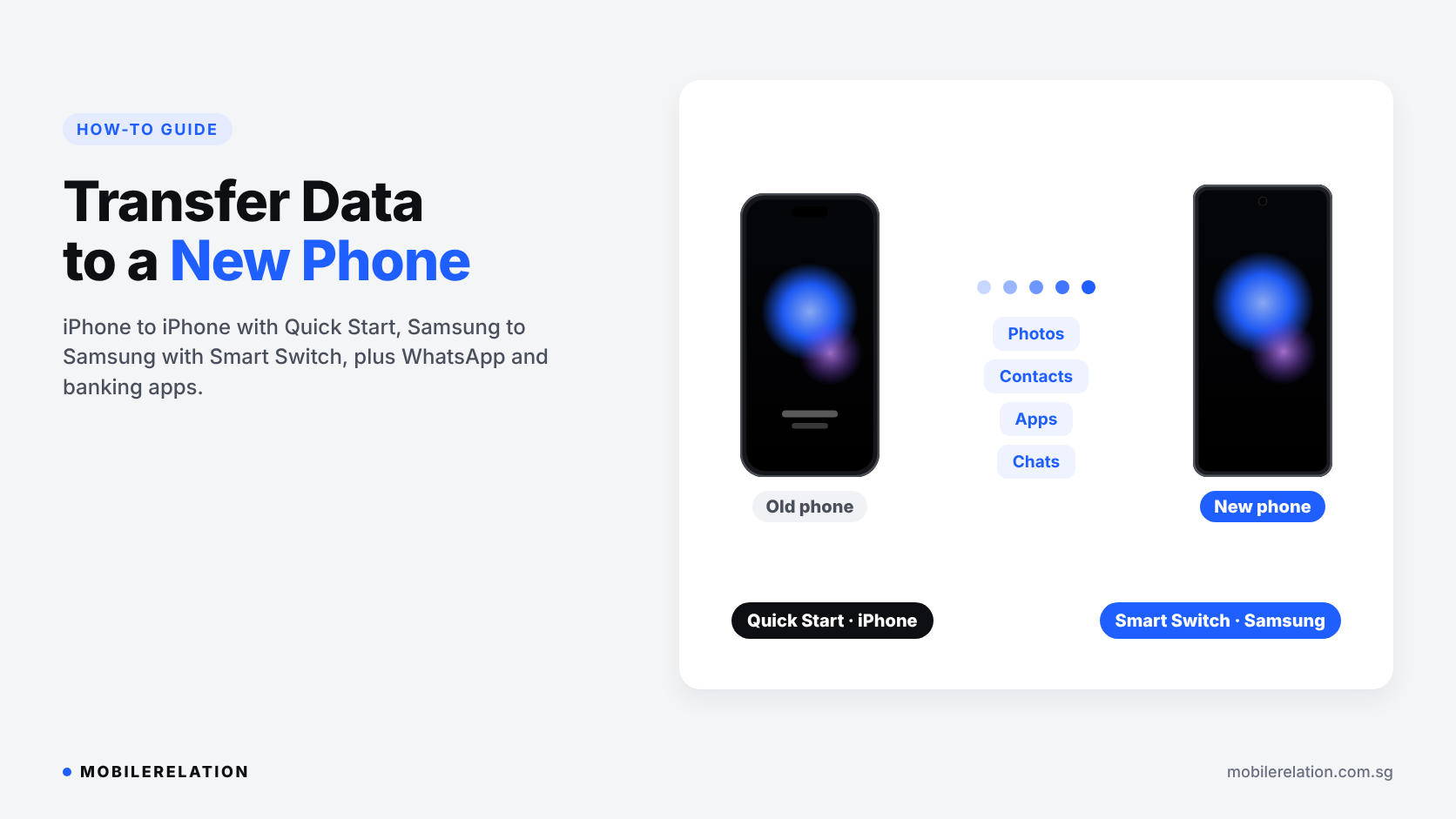
How to Transfer Data to a New Phone: iPhone to iPhone and Samsung to Samsung
Got a new phone? The exciting part is unboxing it. The part most people worry about is moving everything over.
Photos, contacts, apps, messages, WhatsApp chats, banking apps. Nobody wants to lose any of it.
The good news: when you transfer data to a new phone of the same brand, Apple and Samsung both make it simple. This guide shows you how, step by step, plus the things people often forget.
The golden rule:
Do not erase, sell or trade in your old phone until you have checked that everything is working on the new one, especially WhatsApp, banking apps and Singpass.
Do not erase, sell or trade in your old phone until you have checked that everything is working on the new one, especially WhatsApp, banking apps and Singpass.
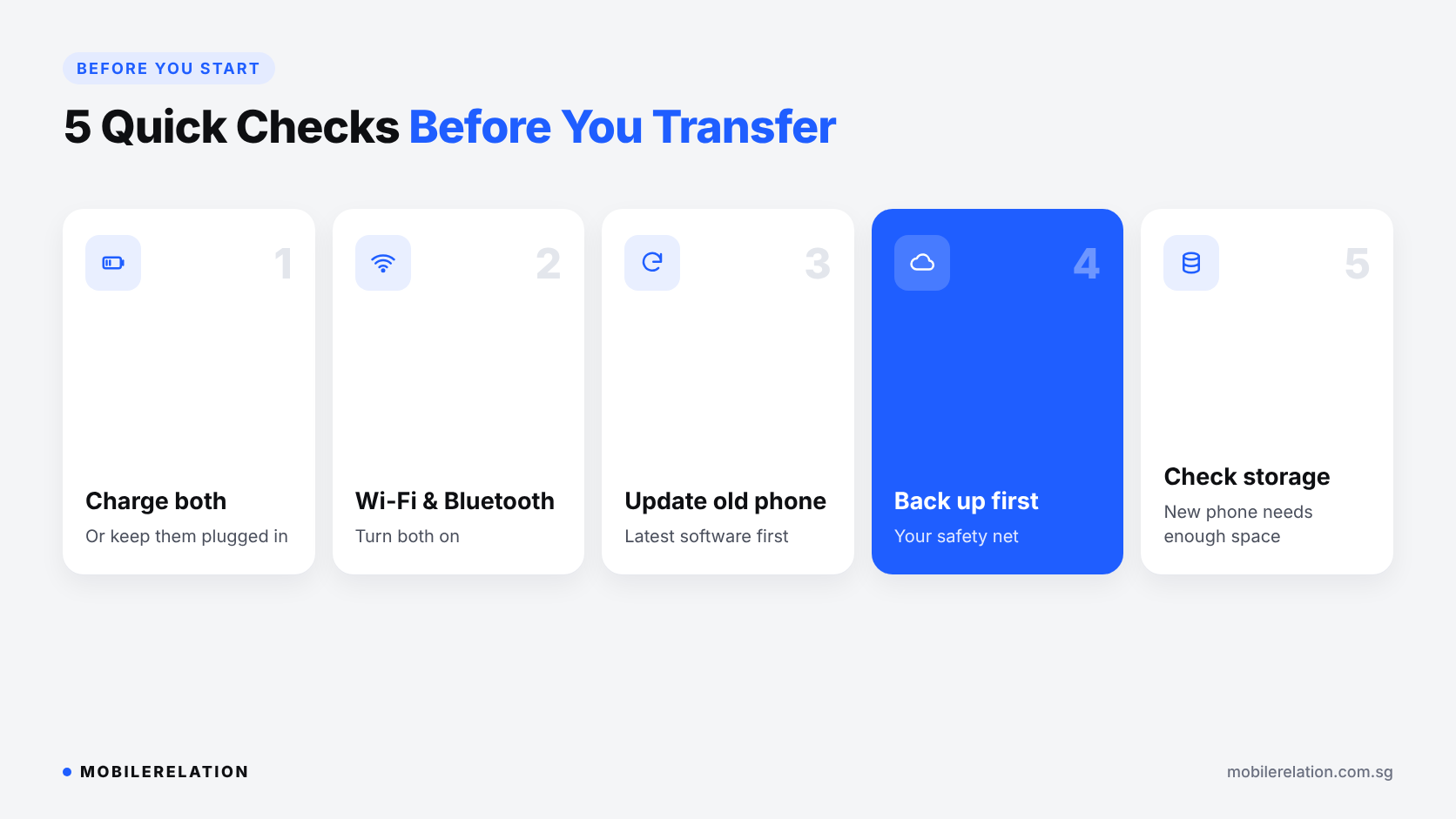
✅ Before You Transfer Data to a New Phone: 5 Quick Checks
• Charge both phones,
or keep them plugged in during the transfer
• Connect to Wi-Fi
and turn on Bluetooth
• Update the old phone
to the latest software
• Back up first
to iCloud or your Google or Samsung account,
as a safety net
• Check storage:
your new phone needs enough space
for everything on the old one
Not sure how much storage you need?
Read:
How Much Phone Storage Do You Need? →
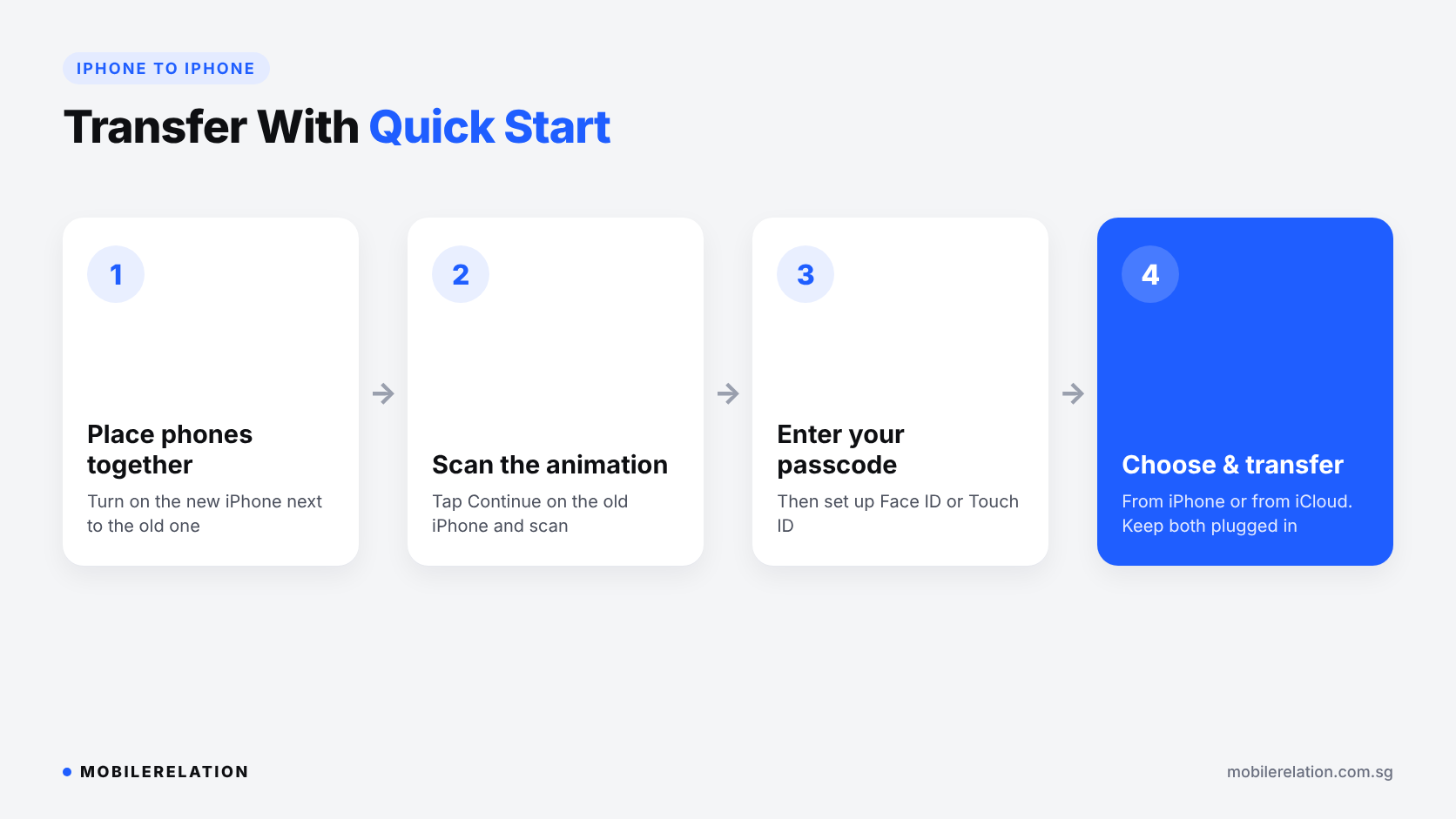
🍎 iPhone to iPhone: Use Quick Start
Quick Start is Apple’s built-in way to transfer data to a new iPhone. It works when your old iPhone is running a supported iOS version and both phones are close together. If both phones are iPhones, it is the easiest way to transfer data to a new phone.
• Step 1: Turn on your new iPhone
and place it next to your old iPhone
• Step 2: A Quick Start prompt appears on the old iPhone.
Tap Continue and scan the animation
on the new iPhone with the old one
• Step 3: Enter your old iPhone’s passcode
on the new iPhone,
then set up Face ID or Touch ID
• Step 4: Choose how to transfer your data,
and keep both phones together and plugged in
until it finishes
Transfer From iPhone or Download From iCloud?
| Option | How It Works | Best For |
|---|---|---|
| Transfer from iPhone | Copies data directly from the old phone. You use the new phone when it finishes | Getting everything in one go, even without a recent iCloud backup |
| Download from iCloud | Restores your latest iCloud backup. Apps and data keep downloading in the background | Using the new phone right away |
You can also restore from a backup on your Mac or PC. Apple explains every option on its Quick Start support page.
Tip: If you use an eSIM, you may be asked to transfer your mobile plan during setup. If it doesn’t work, contact your telco to move the eSIM.
🤖 Samsung to Samsung: Use Smart Switch
Smart Switch is Samsung’s tool to transfer data to a new phone. It is built into Galaxy phones, and also works from other Android phones and even from an iPhone.
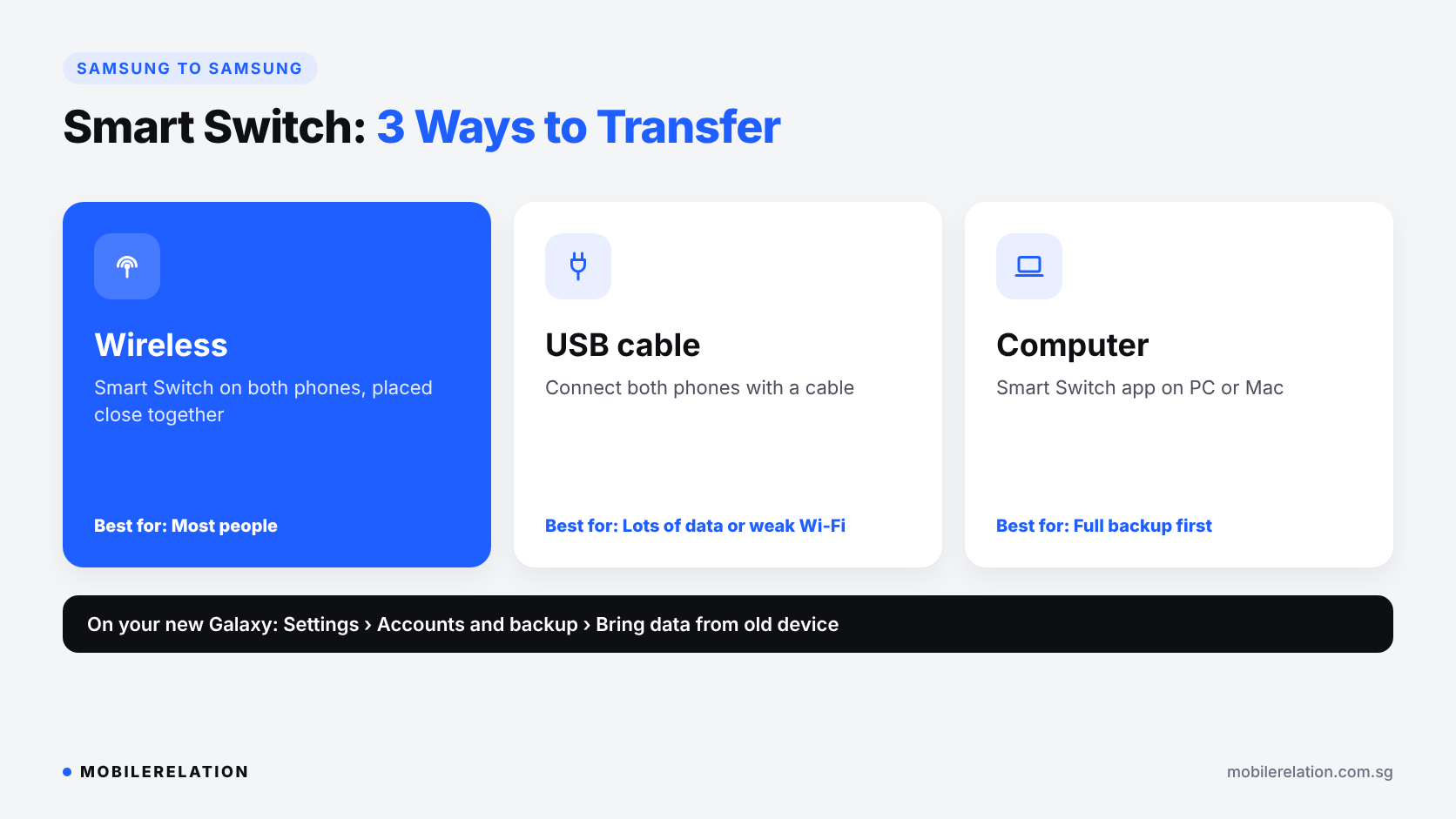
You can use it in three ways:
| Method | What You Need | Best For |
|---|---|---|
| Wireless | Smart Switch on both phones, placed close together | Most people |
| USB cable | A cable connecting both phones (an adapter may be needed) | Large amounts of data or weak Wi-Fi |
| Computer | Smart Switch app on a PC or Mac | Keeping a full backup before switching |
How to Use Smart Switch Wirelessly
• Step 1: On the new Galaxy, go to
Settings > Accounts and backup > Bring data from old device
• Step 2: Tap Receive data on the new phone
and Send data on the old phone
• Step 3: Choose Galaxy/Android,
then Wireless,
and tap Allow on the old phone
• Step 4: Select what to bring over,
tap Transfer,
and keep both phones close and charged
Samsung’s full steps are on its Smart Switch support page.
💬 Transfer Data to a New Phone: Don’t Forget WhatsApp
WhatsApp chats are the number one thing people worry about. Samsung notes that Smart Switch may not transfer third-party messaging apps like WhatsApp, so it is safest to use WhatsApp’s own tools.
| Phone | Option 1 | Option 2 |
|---|---|---|
| iPhone to iPhone | Back up to iCloud in WhatsApp (Settings > Chats > Chat Backup), then restore on the new iPhone | Settings > Chats > Transfer Chats on the old phone, then scan the QR code |
| Android to Android | Back up to your Google Account (Settings > Chats > Chat backup), then restore on the new phone | Settings > Chats > Transfer chats on the old phone, then scan the QR code |
Use the same phone number on the new phone, and keep the old phone until you can see your chats on the new one.
🔐 Banking Apps, Singpass and Other Things to Check
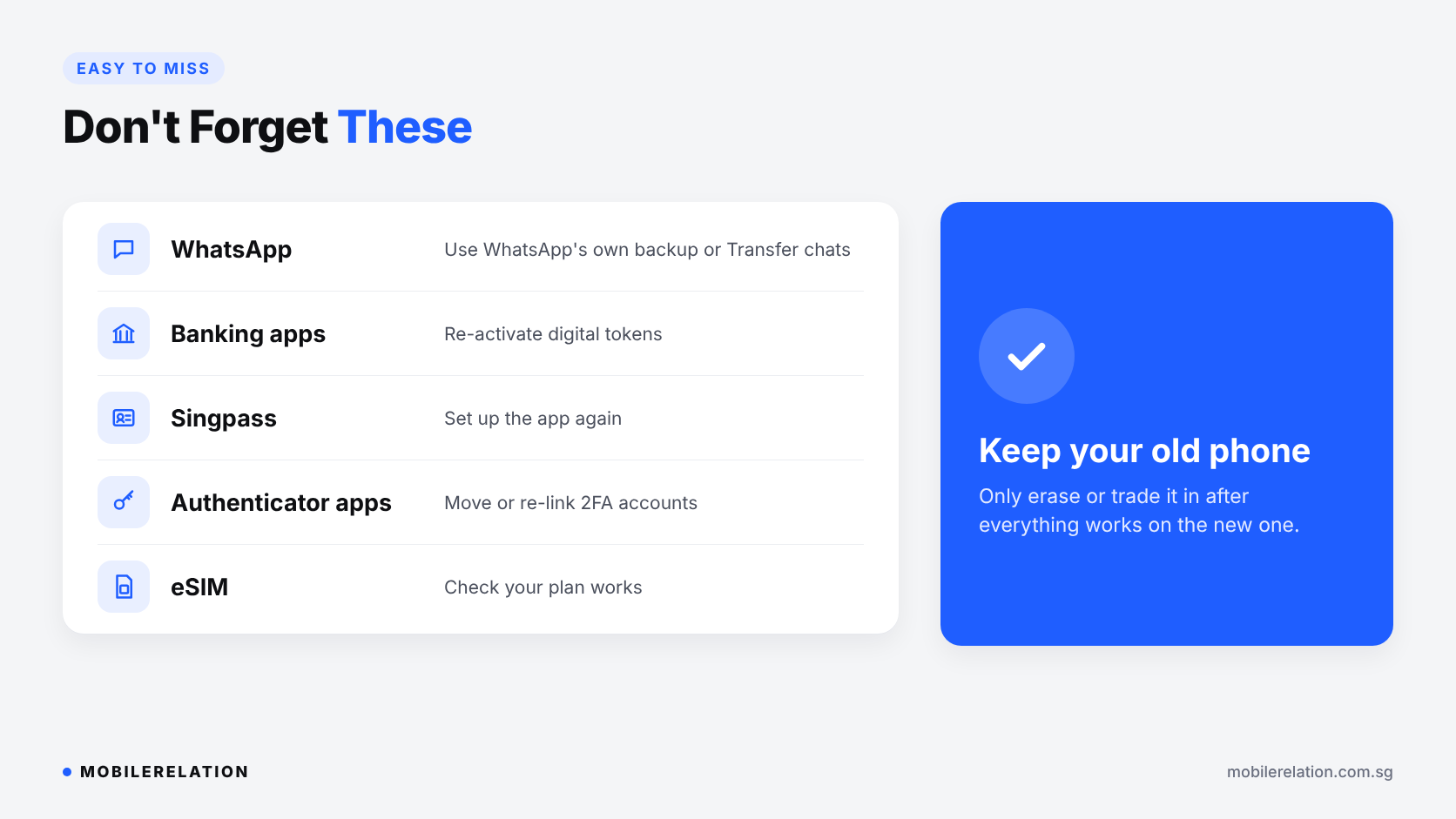
Some apps don’t move over automatically, for security reasons. When you transfer data to a new phone, check these before you erase your old phone:
• Banking apps and digital tokens
usually need to be activated again on the new phone
• Singpass app
needs to be set up again on the new phone
• Authenticator apps
for two-factor sign-in may need their accounts moved
or re-linked
• eSIM:
make sure your mobile plan works on the new phone
• Smartwatch and earbuds
need to be paired with the new phone
🔀 Switching Between iPhone and Samsung?
Moving from iPhone to a Samsung Galaxy? Smart Switch can bring your data over from an iPhone too, including through iCloud.
Read:
How to Switch From iPhone to Android →
🔄 What to Do With Your Old Phone
Once you transfer data to a new phone and are sure everything works on it, your old phone still has value.
• Sign out of your Apple Account,
Google account or Samsung account
• Turn off Find My on iPhone,
or remove the lock on Samsung
• Erase the phone completely
• Remove your SIM card or eSIM
• Trade it in
to lower the cost of your new phone
Check your old phone’s trade-in value →
Read:
How to Prepare Your iPhone Before Trade-In →
How to Prepare Your Samsung Galaxy Before Trade-In →
Upgrading Your Phone?
Browse new and used phones, trade in your old one, or WhatsApp us if you have questions.
Shop Phones Trade In Your Phone❓ Frequently Asked Questions
How long does it take to transfer data to a new phone?
It depends on how much data you have and your connection. It can take from several minutes to over an hour for phones with lots of photos and videos.
Can I use my new iPhone while Quick Start is transferring?
If you choose Download from iCloud, you can start using it while apps and data download in the background. With a direct transfer, you need to wait until it finishes.
Does Smart Switch transfer WhatsApp chats?
Not always. Samsung says third-party messaging data may not transfer, so back up WhatsApp to your Google Account or use WhatsApp’s Transfer chats feature.
Will my banking apps and Singpass move to the new phone?
The apps may be reinstalled, but you usually need to log in and activate digital tokens and Singpass again on the new phone.
Can I transfer data from iPhone to Samsung?
Yes. Samsung’s Smart Switch can import data from an iPhone, including through iCloud.
Is it free to transfer data to a new phone?
Yes. Quick Start on iPhone and Smart Switch on Samsung are free and built in.
When should I erase my old phone?
Only after you have checked that your photos, contacts, WhatsApp, banking apps and Singpass all work on the new phone.
🏁 Final Thoughts
To transfer data to a new phone, use Quick Start for iPhone and Smart Switch for Samsung. Both are free and built in.
Back up first, handle WhatsApp with its own tools, re-activate your banking apps and Singpass, and only then erase and trade in your old phone.