WELCOME TO MOBILERELATION

How to Prepare Your Google Pixel Before Trade-In in Singapore
Ready to trade in your Google Pixel?
Before handing over your phone, there are several important steps you should complete to protect your personal information and make the trade-in process smoother.
Preparing your Pixel is not simply a matter of pressing Factory Reset.
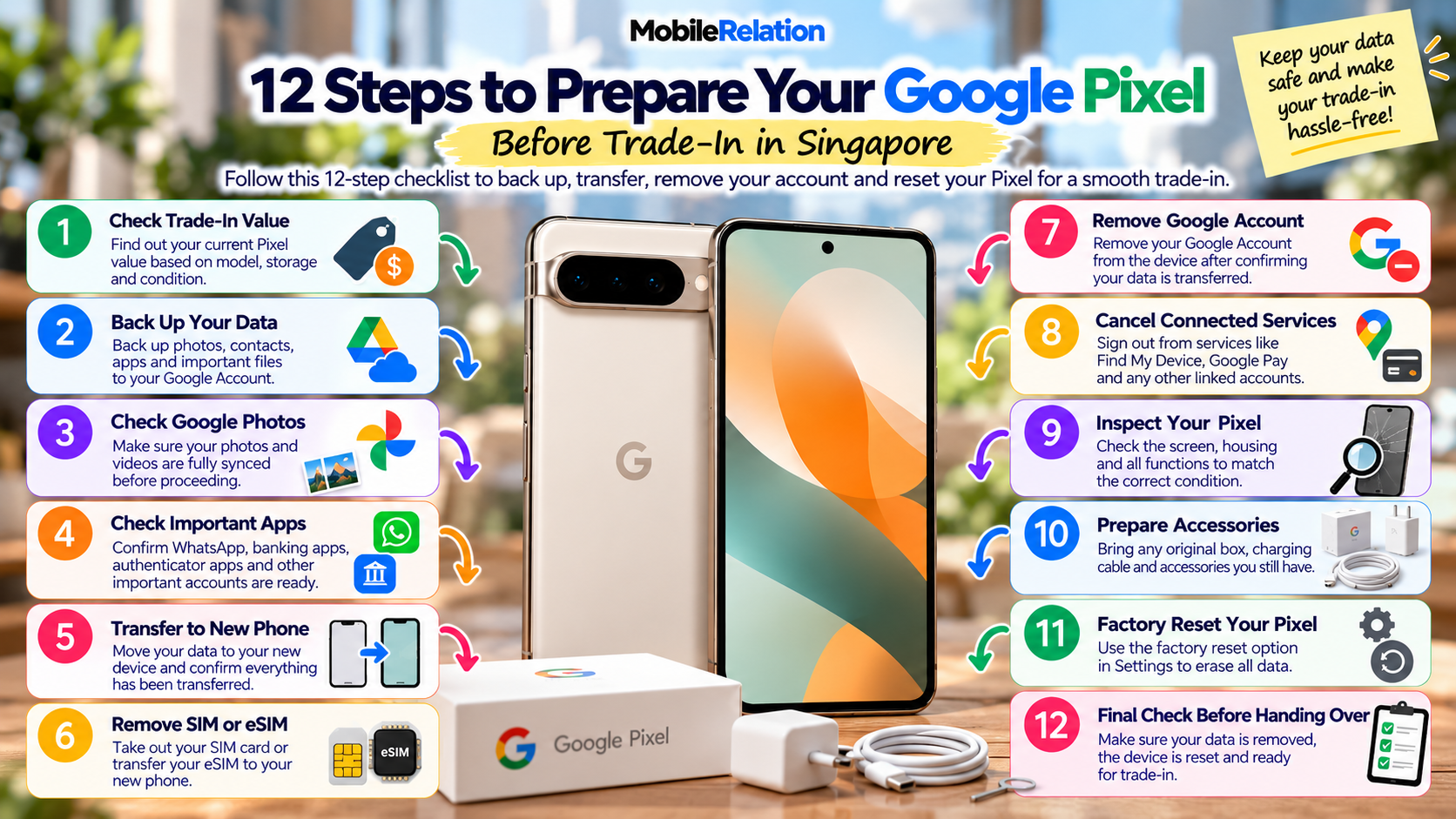
You should first back up or transfer everything you need, check important apps, inspect the phone’s physical and functional condition, remove your Google Account, handle your SIM or eSIM and only then erase the device.
In this guide, we explain how to prepare Google Pixel for trade-in in Singapore step by step.
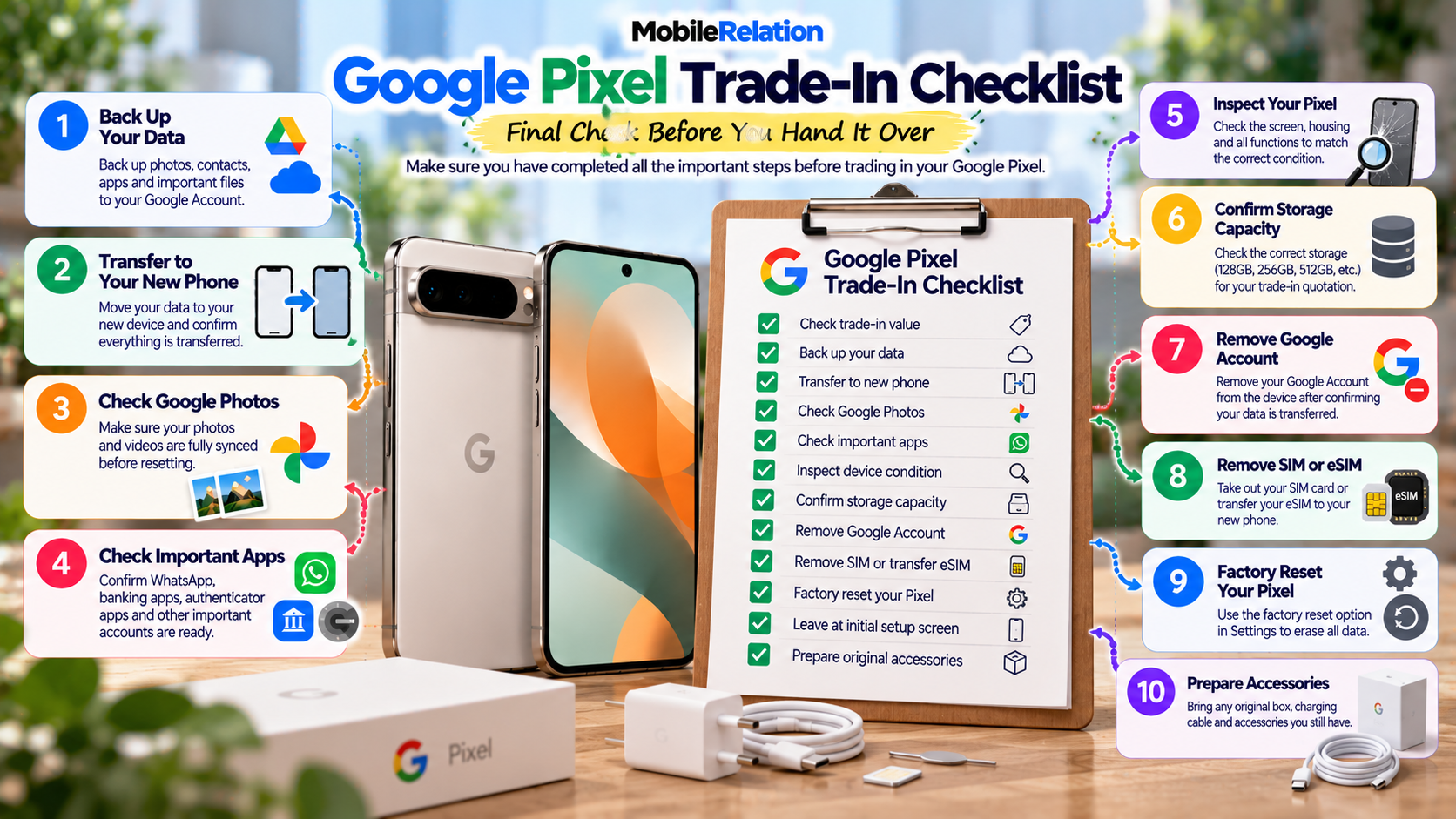
✅ Google Pixel Trade-In Checklist
Use this quick checklist to prepare Google Pixel for trade-in in the right order, so nothing important is missed.
| Step | What to Do |
|---|---|
| 1 | Check your current Pixel trade-in value |
| 2 | Back up important data |
| 3 | Transfer data to your new phone |
| 4 | Confirm Google Photos and important files are synced |
| 5 | Check WhatsApp, banking and authenticator apps |
| 6 | Inspect screen, housing and functionality |
| 7 | Confirm the correct storage capacity |
| 8 | Remove your Google Account |
| 9 | Remove your SIM or transfer your eSIM |
| 10 | Factory reset the Pixel from Settings |
| 11 | Leave the phone at the initial setup screen |
| 12 | Prepare available original accessories |
💰 1. Check Your Google Pixel Trade-In Value First
The first step to prepare Google Pixel for trade-in is knowing roughly what it is worth.
Before deleting or resetting anything, check what your Google Pixel is currently worth.
MobileRelation allows you to select your exact Pixel model, storage and condition to receive an estimated quotation.
Factors can include:
• Pixel model
• Storage capacity
• Screen condition
• Housing condition
• Available original accessories
• Functional condition
Checking the phone before erasing it also makes it easier to test important functions while everything is still set up.
Check Your Google Pixel Value
Select your exact Pixel, storage and condition to see the current estimated quotation.
Check My Pixel Value☁️ 2. Back Up Your Google Pixel
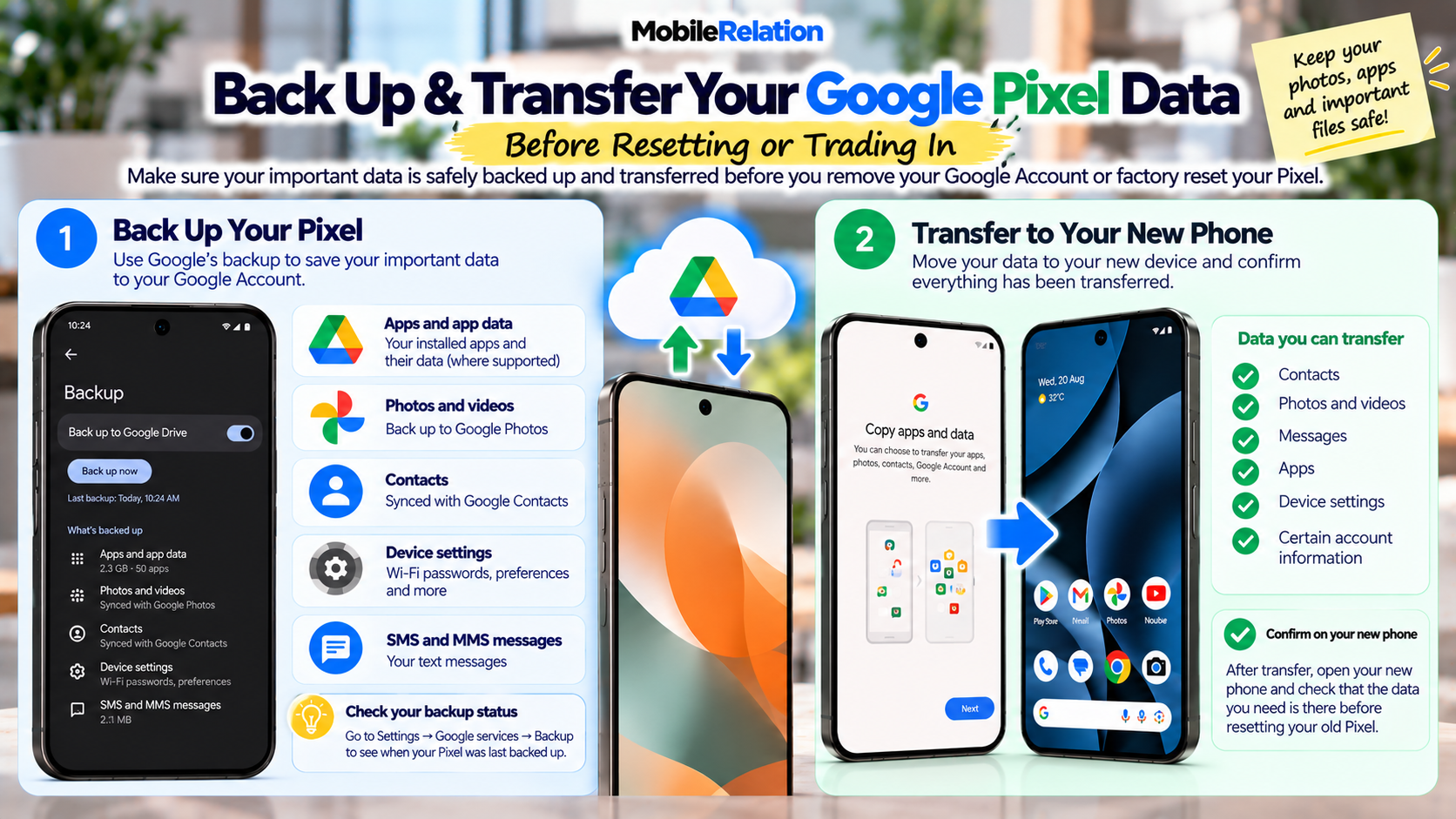
Before transferring or deleting anything, make sure important information has been backed up.
Google Pixel backup can include supported:
• Apps and app data
• Call history
• Contacts
• Device settings
• SMS and MMS messages
Photos, videos and contacts may also be synced separately through their respective Google services.
Check your Pixel backup:
Settings → Google services → Backup
Settings → Google services → Backup
Menu wording can vary slightly depending on your Android version.
Before continuing, check when the phone was last backed up and confirm the information you need is included.
🔄 3. Transfer Your Data to Your New Phone
If you already have your replacement phone, transfer your data before resetting the old Pixel.
Android’s device setup process can transfer supported information directly from the old phone or restore information from a cloud backup.
Depending on the devices involved, this can include:
• Contacts
• Photos and videos
• Messages
• Apps
• Device settings
• Certain account information
Do not erase the old Pixel yet.
First check your new phone and confirm that the information you actually need has arrived successfully.
First check your new phone and confirm that the information you actually need has arrived successfully.
📸 4. Check Google Photos Before Resetting
Photos and videos are often among the most important data stored on a phone.
If you use Google Photos backup, open Google Photos and make sure the photos and videos you want to keep have finished backing up.
Do not assume that every photo stored locally on the Pixel has automatically been uploaded.
Check particularly recent:
• Camera photos
• Videos
• Screenshots
• Downloaded images
• Edited images
🔐 5. Check WhatsApp, Banking and Authenticator Apps
A general phone backup does not necessarily mean every third-party app can be restored exactly as it was.
Before erasing your Pixel, manually check important apps such as:
• WhatsApp and other messaging apps
• Banking apps
• Google Authenticator or other 2FA apps
• Password managers
• Work apps
• Cryptocurrency wallets
• Apps containing locally stored documents
Authenticator apps are easy to forget.
Make sure your authentication accounts have been transferred or that you have recovery methods before erasing your old Pixel.
Make sure your authentication accounts have been transferred or that you have recovery methods before erasing your old Pixel.
🔍 6. Inspect Your Pixel Before Resetting It
This is a good time to check the actual condition of your phone.
Check the Screen
Look for:
• Light scratches
• Deep scratches
• Cracked glass
• Green or coloured lines
• Black spots
• Discolouration
• Touchscreen issues
Check the Housing
Look for:
• Scratches
• Paint wear
• Dents
• Impact damage
Test Important Functions
Check:
• Power
• Fingerprint sensor
• Face Unlock where applicable
• Display
• Touchscreen
• Cameras
• Charging
• Speakers
• Buttons
If your Pixel has damage or faults, read:
Can You Trade In a Damaged Google Pixel in Singapore? →
💾 7. Confirm Your Pixel Storage Capacity
Different storage versions of the same Google Pixel can have different starting trade-in values.
Before requesting your quote, make sure you select the correct configuration.
You can check your Pixel’s storage information from the device settings.
Choosing the wrong 128GB, 256GB, 512GB or other configuration can result in an inaccurate estimated value.
⚠️ Confirm Your Data Before Removing Your Google Account
This order matters.
First:
• Complete your backup
• Transfer your data
• Check the new device
• Confirm important files and apps
Only after you are satisfied that everything you need has been transferred should you continue with account removal and factory reset.
Recommended order:
Backup → Transfer → Verify → Remove Account → Factory Reset
Backup → Transfer → Verify → Remove Account → Factory Reset
👤 8. Remove Your Google Account From the Pixel
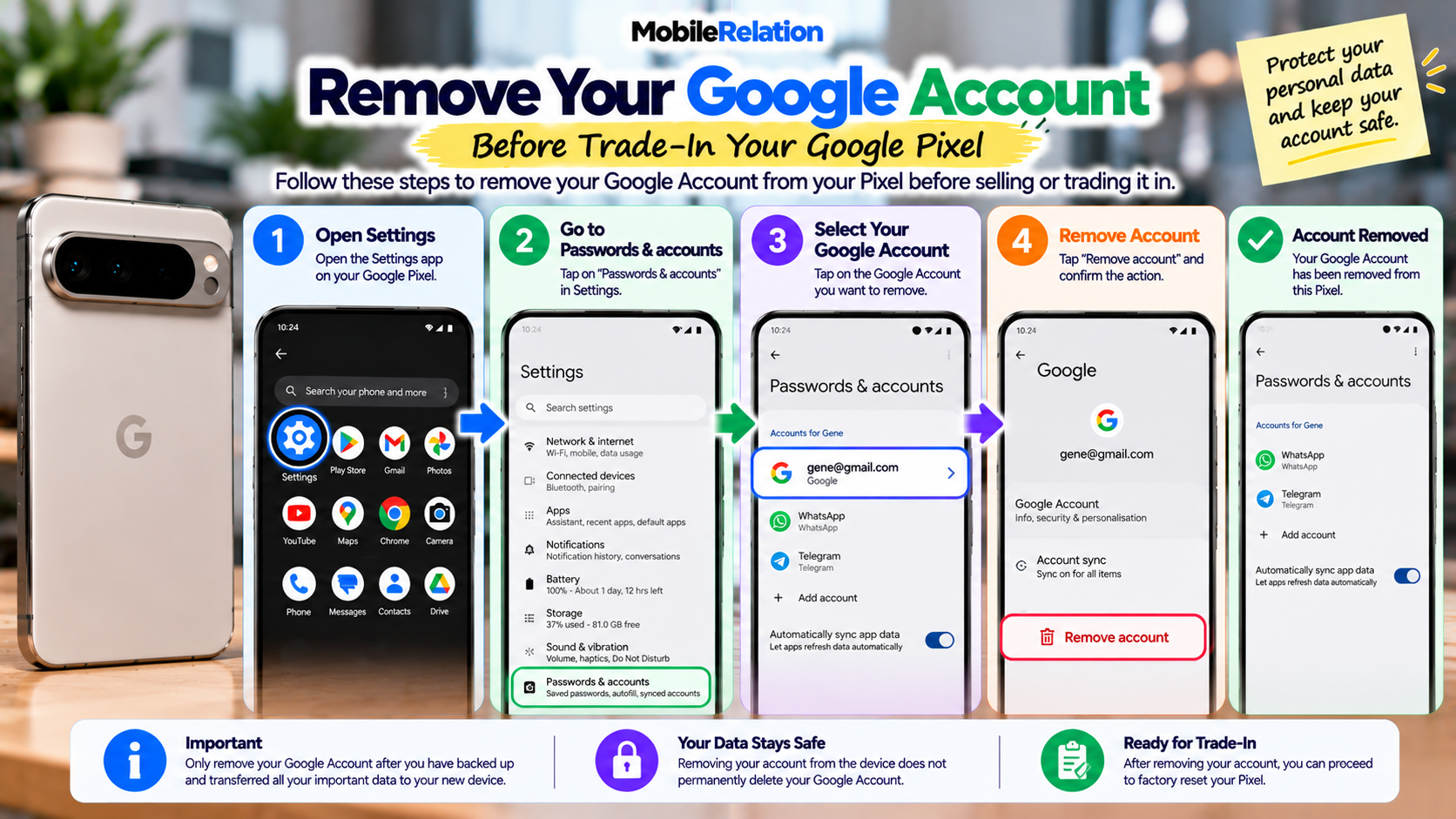
Once your data has been safely transferred, remove your Google Account from the old Pixel before ownership changes.
Typical Pixel path:
Settings → Passwords & accounts → Select your Google Account → Remove account
Settings → Passwords & accounts → Select your Google Account → Remove account
If multiple Google Accounts are signed in, remove the relevant accounts from the device.
Removing an account from the old phone is not the same as permanently deleting your Google Account.
Your Google Account can still be used on your new phone, computer and other devices.
Depending on your Pixel’s security settings, the phone may ask for your PIN, password or biometric confirmation when you make security-sensitive changes.
📶 9. Remove Your SIM or Transfer Your eSIM
Do not forget your mobile service when changing phones.
Physical SIM
Remove your physical SIM card from the Pixel before handing over the device.
eSIM
If you use eSIM, make sure your line has been transferred or activated on your new phone.
The exact process can depend on your mobile operator and new device.
🧹 10. Factory Reset Your Google Pixel
Google’s official support page explains how to factory reset your Pixel.
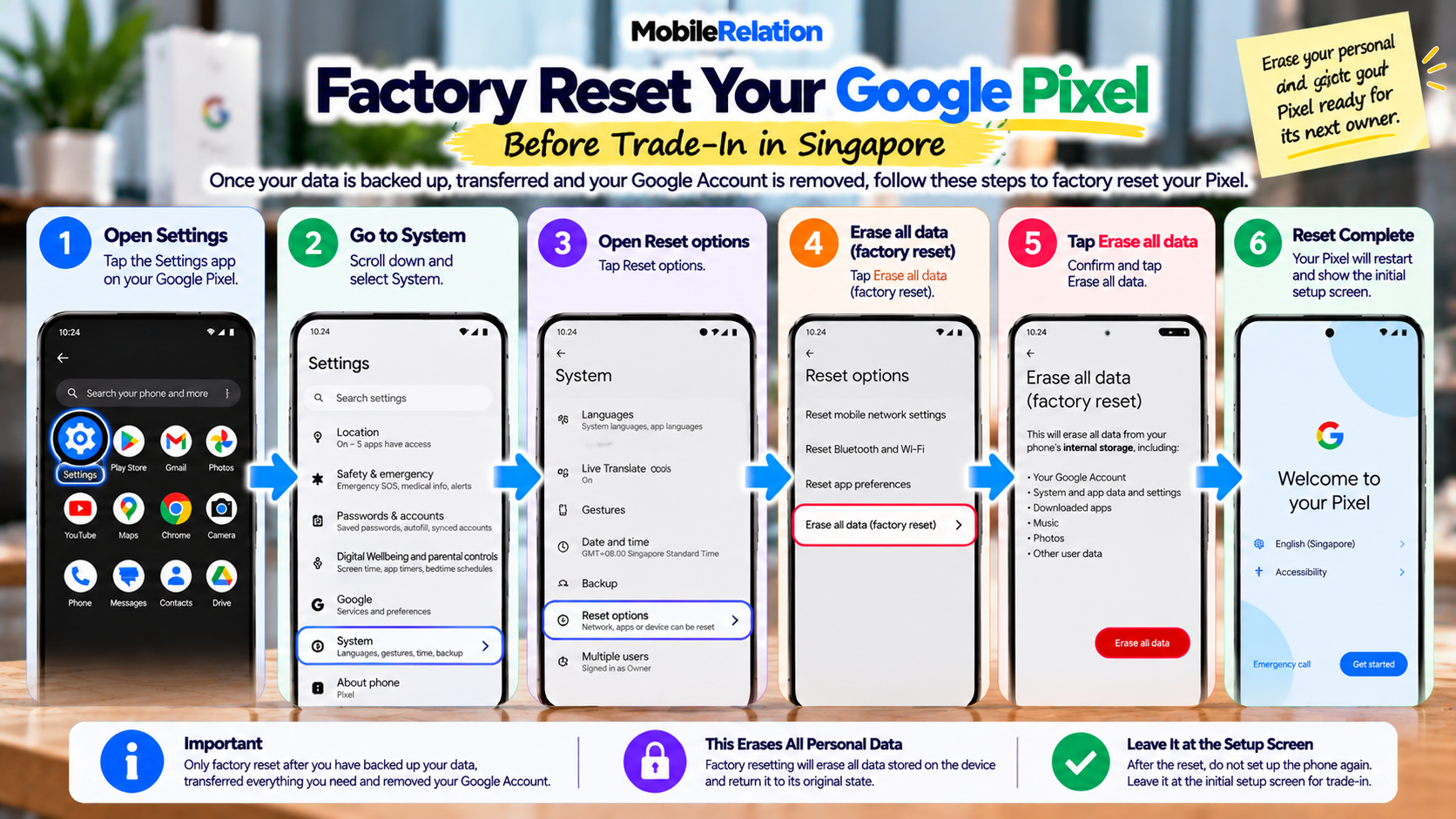
Once everything important has been transferred, your Google Account has been removed, and your SIM has been handled, you can factory reset the phone.
Official Pixel factory-reset path:
Settings → System → Reset options → Erase all data (factory reset) → Erase all data
Settings → System → Reset options → Erase all data (factory reset) → Erase all data
If required, enter your phone’s PIN and confirm the reset.
The Pixel will erase personal data stored on the phone and restart.
Important for trade-in:
Google specifically recommends using the Factory Reset option inside the phone’s Settings app when preparing a Pixel for trade-in.
Google specifically recommends using the Factory Reset option inside the phone’s Settings app when preparing a Pixel for trade-in.
👋 11. Leave the Pixel at the Initial Setup Screen
After the factory reset, the Pixel should restart and display the initial setup screen.
At this point, do not sign back in with your Google Account or set the phone up again for personal use.
The phone is now ready for verification and its next owner.
📦 12. Prepare Any Original Accessories You Still Have
MobileRelation’s Pixel quotation flow may ask whether original accessories are available.
These can include:
• Original box
• Charging cable
If you still have them, keep them together when preparing the Pixel for assessment.
If you no longer have everything, simply provide the actual accessories that are available.
🚫 Common Mistakes Before Trading In a Google Pixel
These are the most common mistakes people make when they prepare Google Pixel for trade-in.
Factory Resetting Before Checking Your Backup
Once your personal data has been erased, recovering information that was never backed up can be difficult or impossible.
Removing Your Google Account Too Early
First make sure the data you need has been transferred and verified before removing accounts from the old device.
Forgetting Authenticator Apps
A factory reset can leave you without access to authentication codes if they were not transferred or backed up properly.
Leaving Your SIM Inside
Always remove your physical SIM before handing over the phone.
Guessing Your Pixel’s Condition
Inspect the screen, housing and functionality while the phone is still fully set up.
♻️ How Google Pixel Trade-In Works at MobileRelation
Once you prepare Google Pixel for trade-in using the steps above, the trade-in itself is quick and simple.
| Step | Process |
|---|---|
| 1. Get Your Quote | Select your Pixel model, storage and condition to see an estimated value. |
| 2. Drop-Off / Pick-Up | Visit a MobileRelation outlet or use an available collection option. |
| 3. Device Verification | The phone is checked to confirm its actual condition and functionality. |
| 4. Payout | Payment is completed after final assessment and verification. |
📚 Want to Understand Your Pixel Trade-In Value?
Preparing your phone correctly protects your data, but the trade-in value itself still depends on factors such as:
model, storage, screen condition, housing condition, accessories, functionality and market demand.
Read our complete guide:
What Affects Google Pixel Trade-In Value in Singapore? →
❓ Frequently Asked Questions
What should I do before trading in my Google Pixel?
To prepare Google Pixel for trade-in, check your current trade-in value, back up and transfer your data, inspect the device, confirm important apps, remove your Google Account, remove or transfer your SIM or eSIM, then factory reset the phone.
Should I factory reset my Google Pixel before trade-in?
Yes. Once your important data has been safely transferred, factory reset the Pixel before handing it over. Google recommends using the Factory Reset option from the Settings app for trade-in.
How do I factory reset a Google Pixel?
Go to Settings, System, Reset options, then Erase all data (factory reset) and follow the on-screen instructions.
Should I remove my Google Account before selling my Pixel?
Yes, but first make sure your important data has already been backed up and transferred. Removing the account from the old Pixel does not permanently delete the Google Account itself.
Should I remove my SIM before Pixel trade-in?
Yes. Remove your physical SIM. If you use eSIM, make sure your mobile service has been transferred or activated on your new phone.
Does Google Pixel backup include my photos?
Photos and videos may be backed up separately through Google Photos. Check that the items you want to keep have completed syncing before resetting the phone.
Will all my apps transfer to my new Pixel?
Not necessarily. Some app data, banking services, authentication apps and locally stored files may require separate setup or transfer.
Can I trade in a damaged Google Pixel?
Some Pixel phones with cosmetic wear or certain defects may still qualify. Final value depends on the exact model, condition and device assessment.
Is my online Pixel trade-in quote guaranteed?
No. Online quotations are estimates. Final value depends on physical condition, functionality, eligibility, verification and current market pricing.
Ready to Trade In Your Google Pixel?
Now that you know how to prepare Google Pixel for trade-in, check what your phone is worth today.
Check the current value based on your exact Pixel model, storage and condition before visiting an outlet.
Check My Google Pixel Trade-In Value🏁 Final Thoughts: Prepare Google Pixel for Trade-In the Right Way
When you prepare Google Pixel for trade-in correctly, you protect your personal information and make the transaction smoother.
Start by checking what your Pixel is currently worth.
Then back up and transfer your data, check Google Photos and important apps, inspect the phone, remove your Google Account and mobile service, and finally factory reset the device.
After the reset, leave the Pixel at its initial setup screen and prepare any original accessories you still have.
Check your Google Pixel trade-in value with MobileRelation →