
How to Transfer eSIM to a New Phone in Singapore: iPhone and Android Guide
With a physical SIM, switching phones is easy: pop the card out and put it in the new phone. With an eSIM, there is no card to move, so many people get stuck at this step.
The good news is that it usually takes just a few minutes. This guide explains how to transfer eSIM to new phone for iPhone, Android, and when switching between the two, plus how to do it through the Singtel, StarHub and M1 apps.
iPhone to iPhone: use eSIM Quick Transfer during setup. Android to Android: look for the option to transfer your SIM during setup. iPhone to Android, or the other way: request a new eSIM through your telco’s app. Keep your old phone until the new eSIM is working.
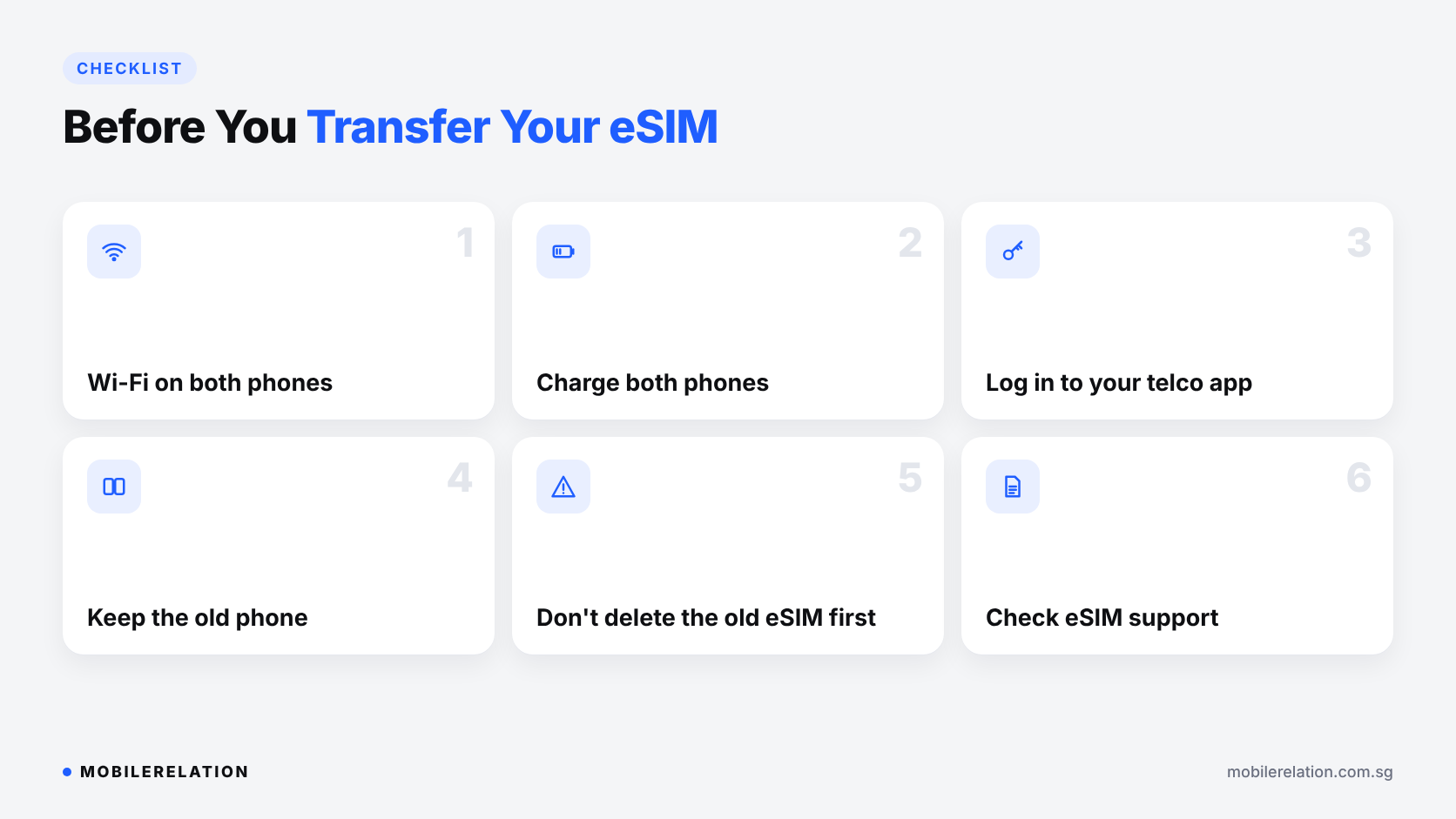
✅ Before You Transfer eSIM to New Phone
• Connect to Wi-Fi
on both phones
• Charge both phones
and keep them close together
• Log in to your telco’s app
in case you need to request a new eSIM
• Keep your old phone
until calls, SMS and data work on the new one
• Do not delete the eSIM
from your old phone first,
unless your telco tells you to
• Check the new phone supports eSIM,
especially if it is an overseas set
Some phones made for Hong Kong or China use two physical SIM slots instead of eSIM. If you are not sure, ask us before you buy.
Read:
Local Set vs Export Set Phones in Singapore: What’s the Difference? →
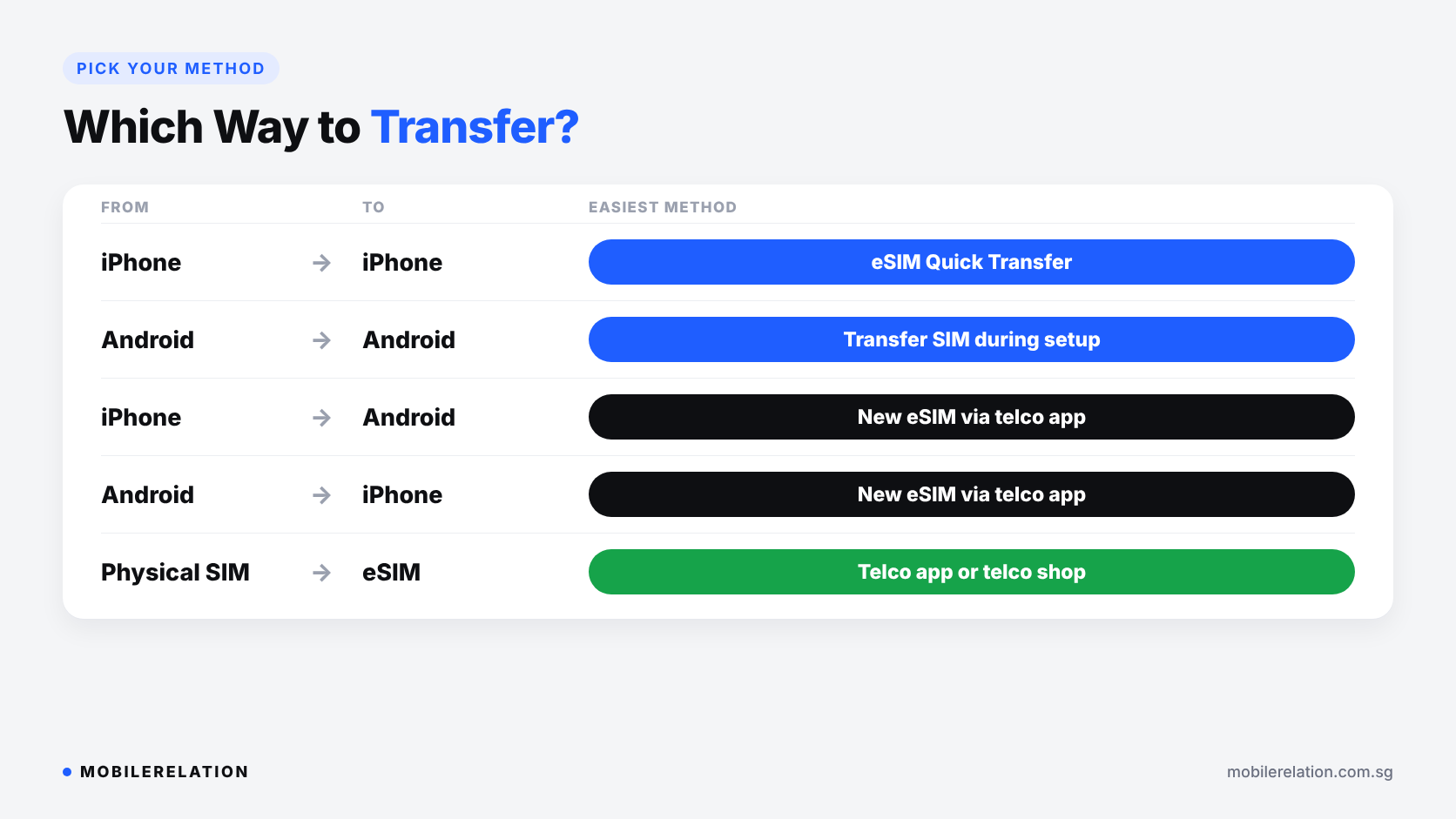
🧭 Which Method Should You Use?
| Switching From | Switching To | Easiest Method |
|---|---|---|
| iPhone | iPhone | eSIM Quick Transfer during setup |
| Android | Android | Transfer SIM option during setup, if your phone and telco support it |
| iPhone | Android | Request a new eSIM in your telco’s app |
| Android | iPhone | Request a new eSIM in your telco’s app |
| Physical SIM | eSIM | Your telco’s app, or a telco shop |
🍎 How to Transfer eSIM to New Phone: iPhone to iPhone
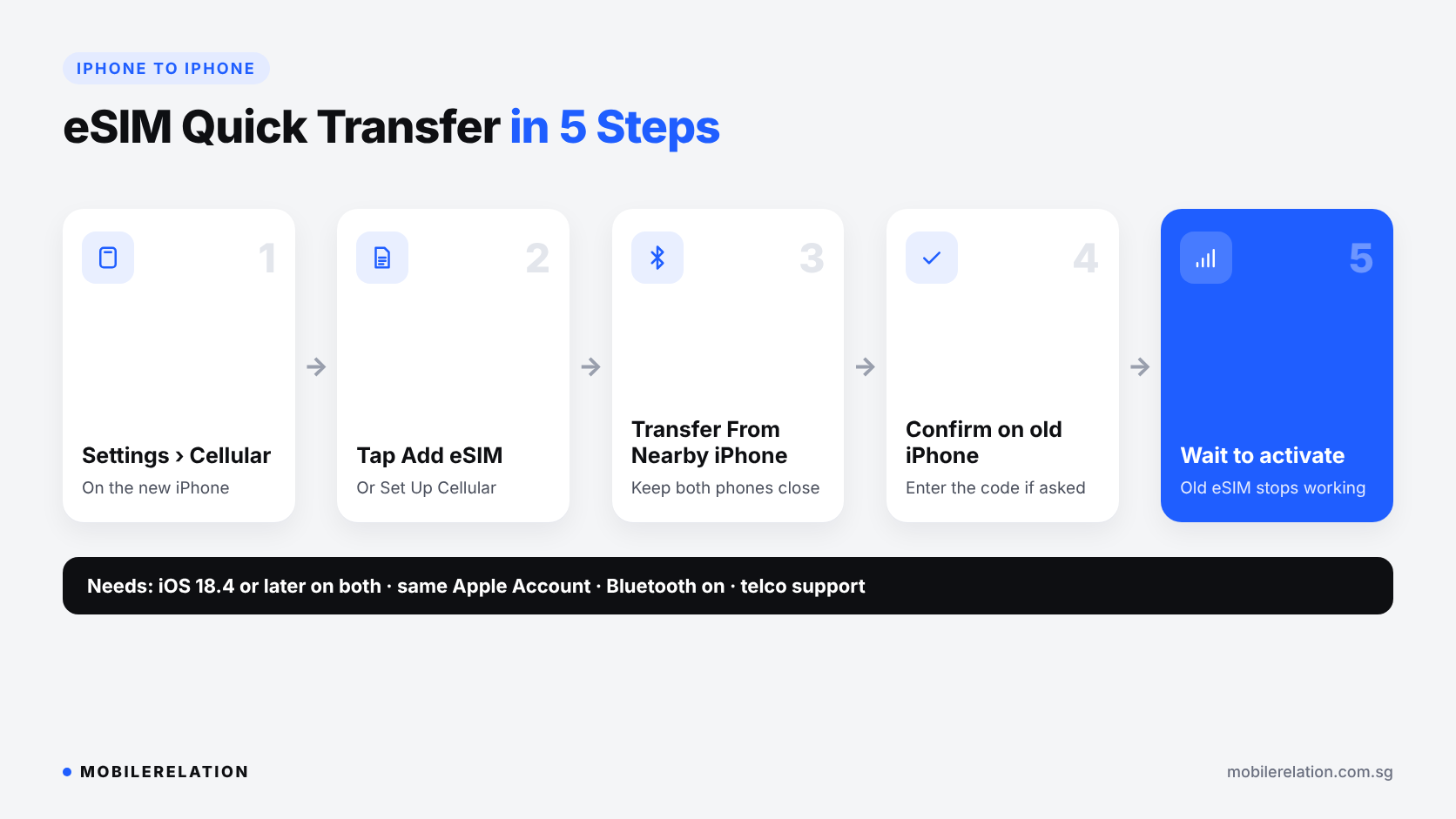
If your telco supports it, eSIM Quick Transfer is the easiest way to transfer eSIM to new phone on iPhone. According to Apple, you need:
• Both iPhones on iOS 18.4 or later
• Both signed in with your Apple Account
• Your old iPhone unlocked with its passcode
• Both iPhones nearby with Bluetooth turned on
During setup
When the new iPhone asks to transfer your number, follow the on-screen prompts.
After setup
• Step 1: On the new iPhone,
go to Settings > Cellular
• Step 2: Tap Add eSIM
or Set Up Cellular
• Step 3: Choose your number,
or tap Transfer From Nearby iPhone
• Step 4: Confirm on your old iPhone,
and enter the code shown on the new iPhone if asked
• Step 5: Wait for the plan to activate
Once the eSIM is active on the new iPhone, it stops working on the old one. If a banner asks you to finish setting up your plan, tap it and follow your telco’s steps. (Source: Apple Support)
🤖 Transfer eSIM to New Phone: Android to Android
Many newer Android phones can transfer your SIM during setup, depending on your telco. On a Google Pixel, for example, both phones need Android 12 or later and a screen lock.
• During setup:
keep the old phone nearby,
choose the SIM to transfer,
then tap Transfer and Activate
• After setup:
go to Settings > Network and Internet > SIMs > Add SIM
and choose Transfer SIM from another device
If the transfer option does not appear, request a new eSIM through your telco’s app instead. (Source: Google Pixel Help)
🔄 Switching Between iPhone and Android
To transfer eSIM to new phone when moving from iPhone to Android, or from Android to iPhone, you usually need to ask your telco for a new eSIM. You will get a QR code or an in-app activation to set up on the new phone.
Apple says that with newer software, some telcos and phone makers also support direct eSIM transfers between Android and iPhone. If you do not see the option, use your telco’s app.
Moving your photos, contacts and WhatsApp chats too?
Read:
How to Transfer Data to a New Phone →
📱 Using Your Telco App in Singapore
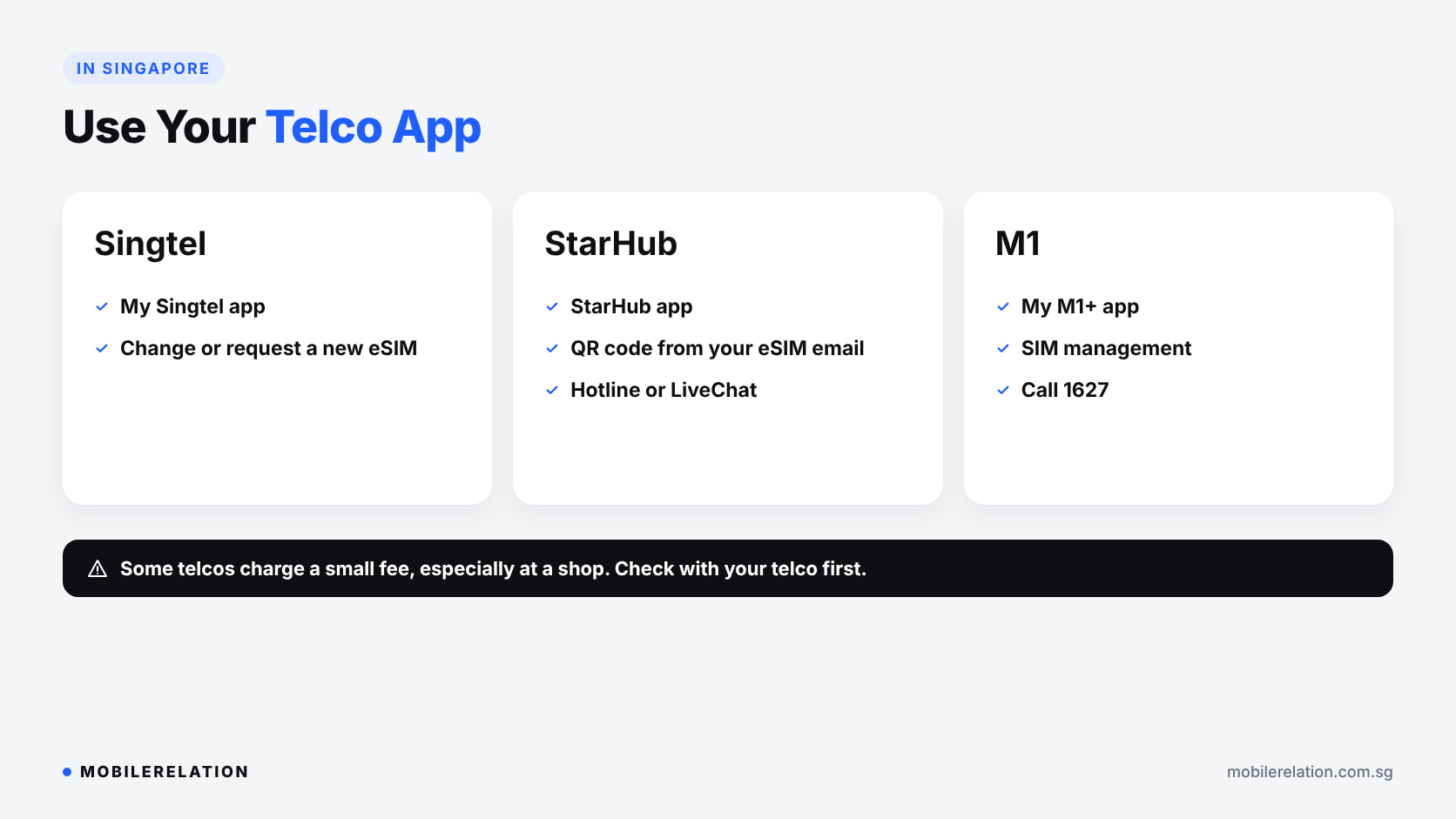
If the quick methods do not work, your telco’s app is the most reliable way to transfer eSIM to new phone in Singapore:
| Telco | Where to Start |
|---|---|
| Singtel | Change or request a new eSIM in the My Singtel app |
| StarHub | The StarHub app, or the QR code from your eSIM email. Hotline or LiveChat if you lost the QR code |
| M1 | SIM management in the My M1+ app, or call M1 at 1627 |
| Other telcos | Look for eSIM or SIM settings in your telco’s app |
Some telcos charge a small fee to re-download an eSIM or to switch from a physical SIM, especially at a shop. Check with your telco before you start.
🛠️ eSIM Not Working on the New Phone?
• Restart the new phone
and wait a few minutes
• Check the line is turned on
and set for mobile data in the SIM settings
• Turn Airplane Mode on and off
• Contact your telco
if there is still no signal,
as they may need to reissue the eSIM
💰 What to Do With Your Old Phone
Once your eSIM and data are on the new phone, remove the eSIM from the old phone, sign out of your accounts and reset it. Then trade it in to get value back.
Read:
How to Prepare Your iPhone Before Trade-In in Singapore →
Getting a New Phone?
Not sure if a phone supports eSIM? WhatsApp us the model, or visit one of our outlets.
Trade In Your Old Phone Find an Outlet❓ Frequently Asked Questions
Can I transfer eSIM to new phone without the old phone?
Yes, but you will usually need to request a new eSIM through your telco’s app, hotline or shop.
Will I lose my number when I transfer eSIM to new phone?
No. Your number stays the same. Only the eSIM profile moves to the new phone.
Can I move an eSIM from iPhone to Android?
Yes. This usually means requesting a new eSIM from your telco. Some telcos and phone makers now support direct transfers too.
Should I delete the eSIM from my old phone first?
Not unless your telco tells you to. Keep it until the new phone works, then remove it before you sell or trade in the old phone.
Do all phones support eSIM?
Most recent phones do, but some overseas sets, such as some models made for Hong Kong or China, use two physical SIM slots instead.
🏁 Final Thoughts
It is easier to transfer eSIM to new phone than most people think. Use Quick Transfer for iPhone, the setup transfer on Android, and your telco’s app for everything else.
Keep your old phone until the new eSIM works, then reset it and trade it in.